
# Crafting A Bash Script with Tmux
Table of Contents
The Background…
I have Django/Vue development environment running locally.
To streamline my Django development, I typically open six tmux windows 😎 :
-
Celery window - It also check and start necessary local services, like mailpit and redis, then fianlly start Celery.
-
Flower window - Start Flower
-
Django window - Start Django runserver
-
Django manager shell window - For Django manager operations
-
Heroku window - Checking Heroku status and commit and other Heroku operations
-
Vue window - Start npm run serve or build
I used one Tmux session to hold all above.
However, my laptop sometimes needs to reboot, after reboot, all of my windows are gone 😓
I have configured tmux-resurrect and tmux-continuum to try to handle this scenario, but they couldn’t re-run those commands even they could restore the windows correctly.
Let me show you the screenshots.
The problem…
Typically, my development windows look like this:
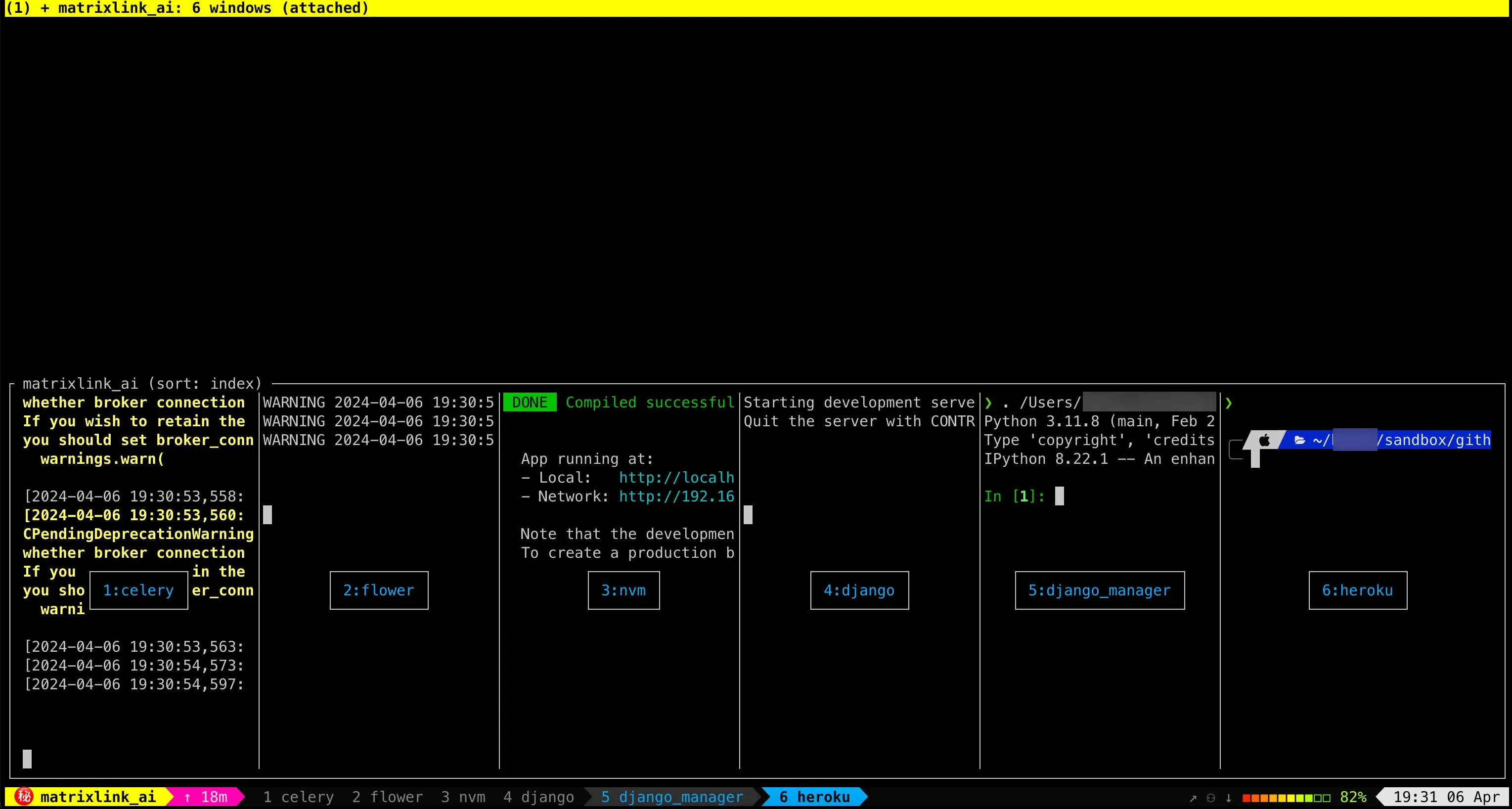
As you see, the services are running within the respective windows.
If I save them with tmux-resurrect, after reboot, of course tmux-resurrect and tmux-continuum could restore them, but services and all environment variables are gone.
To simulate, let me kill all sessions in tmux, check the output:

Now start tmux again, here are the status I can see, tmux restored the previous saved windows:

Let’s check the window now:
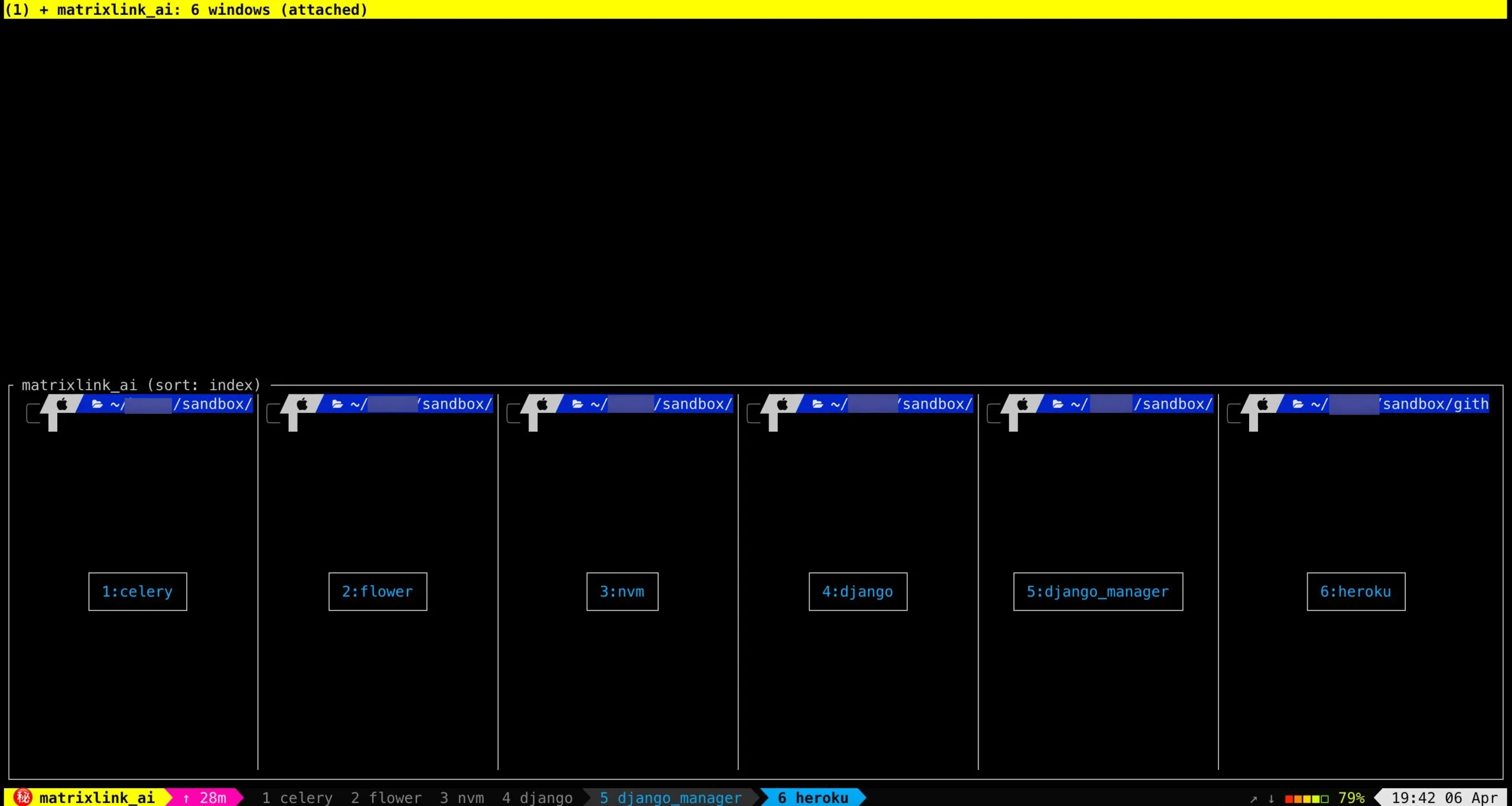
None of the services is running 🙉
The Complain…
As the supreme overlord of geekcoding101.com, I simply cannot let such imperfection slide.
Not on my watch.
Nope, not happening.
This ain’t it, chief.
Okay, let’s fix it!
The Fix…


…


Okay! I wrote a script.. oh no! Two scripts!
One is called start_tmux_dev_env.sh to create all windows, it will invoke prepare_dev_env.sh which export functions to initialize environment variables in specific windows.
A snippet of start_tmux_dev_env.sh:
#!/bin/bash
# Please note: don't use dot in session name.SESSION_NAME="matrixlink_ai"
# Check if the tmux session already existstmux has-session -t $SESSION_NAME 2>/dev/null
if [ $? != 0 ]; then  # Create a new detached tmux session named matrixlink.ai  tmux new-session -d -s $SESSION_NAME
  # Set up the 'celery' window  tmux rename-window -t $SESSION_NAME 'celery'  echo "Starting celery window..."  echo "Sleeping 5s to wait window celery finish initialization....."  sleep 5  echo "Checking psql in window celery..."  tmux send-keys -t $SESSION_NAME 'psql -h localhost -p 5432 -d matrixlink_ai' C-m  sleep 2  tmux send-keys -t $SESSION_NAME '\q' C-m  sleep 1
  # Can't use ENVIRONMENT variable for the script path be sourced.  # Remember to put below command to background, otherwise it will wait here forever.  tmux send-keys -t $SESSION_NAME '. ${YOUR_PATH_TO_PROJECT}/matrixlink.ai/utils/prepare_dev_env.sh && setup_celery_window' C-m &
  echo "Starting flower window..."  tmux new-window -t $SESSION_NAME -n 'flower'  echo "Sleeping 5s to wait window flower finish initialization....."  sleep 5  # $SESSION_NAME:flower is to specify the window  # $SESSION_NAME.flower is to specify the pane  tmux send-keys -t $SESSION_NAME:flower '. ${YOUR_PATH_TO_PROJECT}/matrixlink.ai/utils/prepare_dev_env.sh && setup_flower_window' C-m &
  echo "Starting nvm window..."  ...
  echo "Starting Django window..."  ...
  echo "Starting Django manager window..."  ...
  echo "Starting Heroku window..."  ...fi
# Attach to the tmux sessiontmux attach -t $SESSION_NAME
The prepare_dev_env.sh looks like:
#!/bin/sh
WORKDIR="${YOUR_PATH_TO_PROJECT}/github/matrixlink.ai/"CONDA_ENV="matrixlinkai.django"
setup_celery_window() {  conda activate ${CONDA_ENV}  cd $WORKDIR  brew services start mailpit  brew services start redis  export REDIS_URL=redis://localhost:6379/0  export USE_DOCKER=no  export CELERY_CONFIG_TASK_ALWAYS_EAGER=yes  celery -A config.celery_app worker --loglevel=info}
setup_flower_window() {  conda activate ${CONDA_ENV}  cd $WORKDIR  export CELERY_BROKER_URL=$(echo "REDIS_URL")  export REDIS_URL=redis://localhost:6379/0  export CELERY_BROKER_URL=$REDIS_URL  export CELERY_FLOWER_USER=debug  export CELERY_FLOWER_PASSWORD=debug  export USE_DOCKER=no  export CELERY_CONFIG_TASK_ALWAYS_EAGER=yes  celery -A config.celery_app -b ${CELERY_BROKER_URL} flower --basic_auth="${CELERY_FLOWER_USER}:${CELERY_FLOWER_PASSWORD}"}
setup_django_window() {  conda activate ${CONDA_ENV}  cd $WORKDIR  export CELERY_BROKER_URL=$(echo "REDIS_URL")  export REDIS_URL=redis://localhost:6379/0  export CELERY_BROKER_URL=$REDIS_URL  export CELERY_FLOWER_USER=debug  export CELERY_FLOWER_PASSWORD=debug  export USE_DOCKER=no  export EMAIL_HOST=localhost  export CELERY_CONFIG_TASK_ALWAYS_EAGER=yes
  # Please export sensitive information manually, like OPENAI key
  # You need to manually replace ${DB_USERNAME} here if not yet set environment variable.  export DATABASE_URL=postgres://${DB_USERNAME}@127.0.0.1:5432/matrixlink_ai  python manage.py migrate  echo "Sleeping 10s to wait npm to start in another window..."  sleep 10  python manage.py runserver 0.0.0.0:8000}
setup_django_manager_window() {  conda activate ${CONDA_ENV}  cd $WORKDIR  export USE_DOCKER=no  # You need to manually replace ${DB_USERNAME} here if not yet set environment variable.  export DATABASE_URL=postgres://${DB_USERNAME}@127.0.0.1:5432/matrixlink_ai  export REDIS_URL=redis://localhost:6379/0  export CELERY_CONFIG_TASK_ALWAYS_EAGER=yes  python manage.py shell}
setup_nvm_window() {  conda activate ${CONDA_ENV}  cd $WORKDIR/frontend  npm run serve}
The End…
Now, after reboot, I can just invoke script start_tmux_dev_env.sh and it will spin up all windows for me in seconds!
I’M Really Pround Of You GIFfrom Ron Swanson GIFs
I’ve recorded a video about how it looks like when running the script, please check out at my post Terminal Mastery: Crafting A Productivity Environment With ITerm, Tmux, And Beyond
Thanks for watching!