GeekCoding101

If your built Vue app shows a blank page when you open dist/index.html directly, two things are causing it. The build points to assets with absolute paths like /js/app.js, and Vue Router’s createWebHistory expects a real web server. Neither works over file://. To fix it, build with relative asset paths (publicPath: '') and use createWebHashHistory for local builds. You can also skip the double-click entirely and serve dist with a local web server.
Below is how I ran into this, why it happens, and the exact changes I made.
Quick answer
| Symptom | Cause | Fix |
|---|---|---|
| Blank page, assets fail to load | Absolute asset paths (/js/..., /css/...) resolve to the root of your disk under file:// | Set publicPath: '' for local builds (Vue CLI) |
| Page loads but no route matches | createWebHistory reads the real URL path (/Users/.../dist/index.html), which matches none of your routes | Use createWebHashHistory for local builds |
Works with npm run serve, fails from disk | The dev server handles assets and SPA routing for you | Serve dist with a web server, or apply both fixes above |
How I ran into it
I was trying some new stuff with Vue recently. I downloaded the free version of the Vue Argon Dashboard and built it locally. The build was straightforward:
nvm use lts/ironnpm installnpm run buildThat gave me the dist folder:
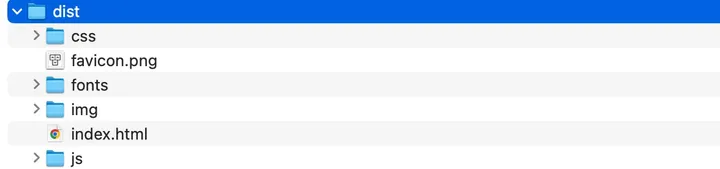
Then I double-clicked index.html, expecting the nice landing page. I got a blank page instead.
npm run serve worked fine, though. I could see the portal and move between pages without issues. So the code was fine, and the problem was in how the build was being opened. I had to fix this. Should be quick!
Why the built index.html is blank
Bingo! The project’s router used createWebHistory instead of createWebHashHistory, and the build used absolute asset paths. Each of these breaks something when you open the file from disk.
1. Absolute paths for static assets
By default, Vue CLI builds with publicPath: '/'. That means every JS, CSS and image reference in index.html starts with /.
When you open index.html with the file:// protocol, /js/app.js points to the root of your file system, not to the dist folder. The scripts never load, so nothing renders.
2. SPA routing in history mode
createWebHistory uses the real URL path, like /dashboard, to decide which route to show. On a web server, the server returns index.html for every path and Vue Router takes it from there.
Opened from disk, the “path” is something like /Users/you/project/dist/index.html, which matches none of your routes. Vue Router has no server to lean on.
npm run serve hides both problems. The dev server serves assets from the right place and returns index.html for every route.
createWebHistory vs createWebHashHistory
Neither mode is required in production. It’s a trade-off:
createWebHistory | createWebHashHistory | |
|---|---|---|
| URL style | Clean: /dashboard | Hash: /#/dashboard |
| Server config needed | Yes: every route must fall back to index.html | No |
| Refresh or deep link without that config | 404 | Works |
Opening index.html from disk | Doesn’t route correctly | Works (with relative asset paths) |
| SEO | Clean URLs are generally preferred | Hash URLs are less friendly, though search engines handle them better than they used to |
- Clean URLs: if professional-looking URLs matter for user experience or branding,
createWebHistoryis the usual choice for public-facing sites. - Ease of deployment:
createWebHashHistoryneeds no server configuration. That makes it handy when you have limited control over hosting. - Refresh behavior: with
createWebHistory, refreshing or typing a deep URL returns a 404 unless the server redirects those requests toindex.html. Hash mode doesn’t have this problem.
I wanted clean URLs in production but hash mode for local builds I could open straight from disk. So I switched the mode by environment.
The fix (Vue CLI)
Step 1: Add mode-specific scripts to package.json
I set an explicit mode for serve and build, and added two new scripts, serve_prod and build_dev:
"scripts": { "serve": "vue-cli-service serve --mode development", "serve_prod": "vue-cli-service serve --mode production", "build": "vue-cli-service build --mode production", "build_dev": "vue-cli-service build --mode development"}Step 2: Use relative asset paths outside production
Create or edit vue.config.js:
module.exports = { publicPath: process.env.NODE_ENV === "production" ? "/" : "",};An empty publicPath makes asset URLs relative, so index.html finds js/ and css/ next to it.
Step 3: Choose the router history mode by environment
The original src/router/index.js:
import { createRouter, createWebHistory } from "vue-router";// ...other existing code
const router = createRouter({  history: createWebHistory(),  routes,  linkActiveClass: "active",});
The updated version:
import { createRouter, createWebHistory, createWebHashHistory } from "vue-router";// ...other existing code
// Clean URLs in production, hash URLs for local/dev buildsconst history =  process.env.NODE_ENV === "production"    ? createWebHistory()    : createWebHashHistory();
const router = createRouter({  history,  routes,  linkActiveClass: "active",});
export default router;
Don’t forget to import createWebHashHistory. Without it, the build fails.
Step 4: Build and open
npm run build_devOpen dist/index.html again, and the portal shows up 😎
Option B: serve dist instead of double-clicking
If you only want to look at a production build locally, serving the folder avoids both problems without changing any code:
npx serve -s distThe -s flag turns on single-page app mode, so every route falls back to index.html, just as createWebHistory expects.
Deploying createWebHistory to production
With history mode, the production server must return index.html for any path that isn’t a real file. On nginx, for example:
location / { try_files $uri $uri/ /index.html;}Without a fallback like this, refreshing a page such as /dashboard returns a 404.
Using Vite instead of Vue CLI?
The same two causes apply, but the settings have different names:
- Asset paths: set
base: './'invite.config.jsfor builds you want to open from disk. - Environment check: use
import.meta.env.PRODinstead ofprocess.env.NODE_ENV === 'production'. - To check a build locally, run
npx vite preview. Vite outputs ES module scripts, and browsers may block those overfile://, so previewing through a server is the safer route.
FAQ
Why does npm run serve work but dist/index.html is blank?
The dev server serves assets from the right location and returns index.html for every route. Opening the file from disk does neither, so absolute asset paths break and history-mode routing has nothing to match.
Should I use createWebHashHistory in production?
You can. It’s the simplest option when you can’t configure the server. Use createWebHistory if you want clean URLs and can add an index.html fallback on the server.
What does publicPath: '' do?
It makes Vue CLI write relative asset URLs (js/app.js instead of /js/app.js), so index.html can load its files from the same folder.
Why do I get a 404 when I refresh a page in production?
You’re using createWebHistory, and the server isn’t sending unknown paths to index.html. Add a fallback rule such as nginx’s try_files $uri $uri/ /index.html;.
Do I need both the publicPath change and the router change?
To open the build straight from disk, yes. Relative paths get the app to load, and hash mode gets the routes to resolve. If you serve dist with a server, you need neither.
Thanks for reading! Have a good day!