# Ghidra MCP: Let AI Help You Reverse Engineer Binaries
Table of Contents
Reverse Engineering Meets AI
Reverse engineering is slow, careful work. You open a stripped binary in Ghidra, stare at FUN_100000db8, read the decompiled C, guess what it does, rename it, add a comment, and repeat a few hundred times. It’s the kind of work that’s perfect for an AI assistant, as long as the assistant can actually see and touch the Ghidra project.
That’s what GhidraMCP does, and it’s a good example of how agents get real tools today: an agentic framework or coding agent supplies the reasoning loop, and MCP supplies the hands. It’s an open-source MCP server by LaurieWired (Apache-2.0) that exposes Ghidra’s core features as tools, so Claude, Cursor, VS Code Copilot or any other MCP client can decompile functions, follow cross-references, rename things and leave comments, inside a real Ghidra project.
In this post I install the whole stack from scratch on an Apple Silicon Mac, compile a real open-source program, strip it, and use GhidraMCP to find and name its checksum and gzip functions. Every screenshot below is real output from that run, including the parts that didn’t go smoothly.
How GhidraMCP Works
GhidraMCP has two parts:
- A Ghidra extension (
GhidraMCPPlugin) that runs inside Ghidra and starts a small HTTP server on loopback, by defaulthttp://127.0.0.1:8080/. - A Python MCP server (
ghidra-mcp) that your AI app launches. It speaks MCP to the AI app and turns each tool call into an HTTP request to the extension.
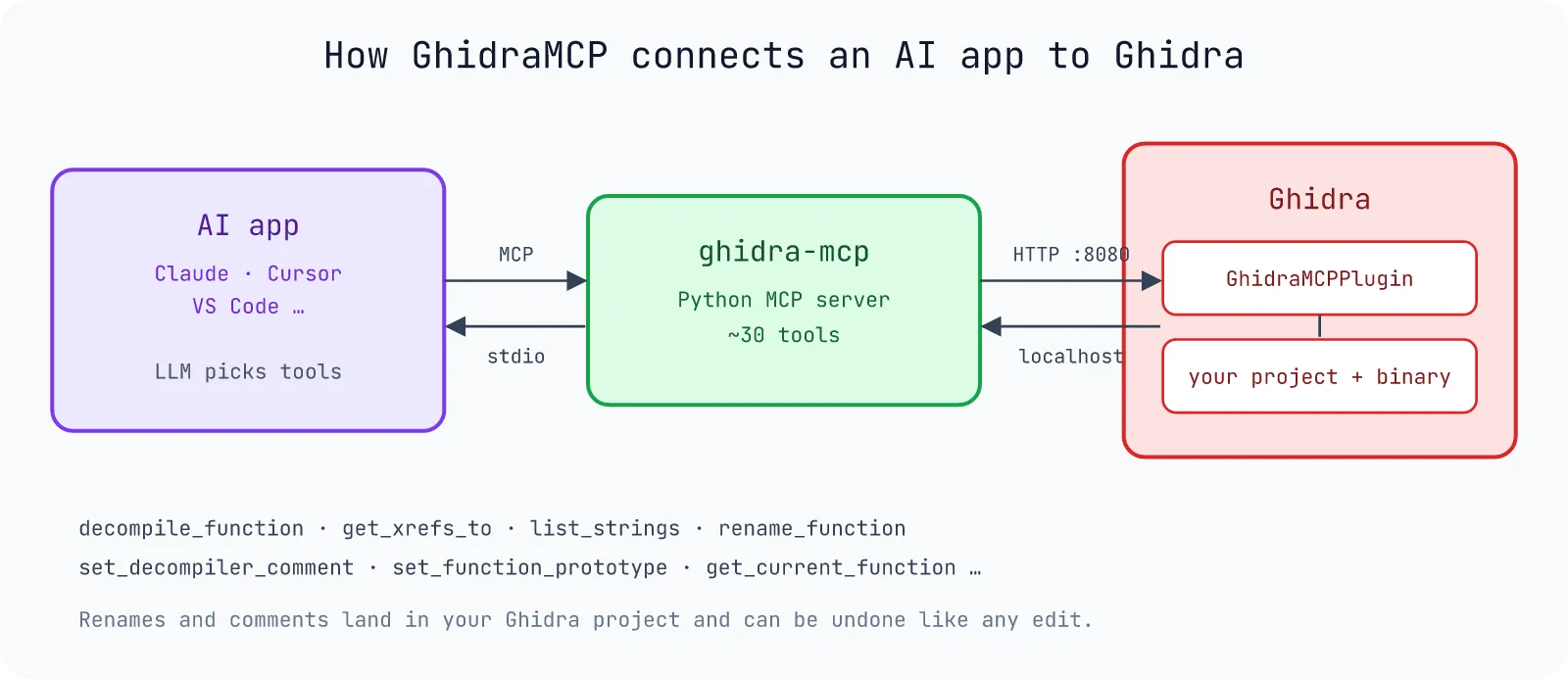
There are two ways to run it:
- GUI mode: you open the program in Ghidra’s CodeBrowser, the plugin serves it, and every rename or comment the AI makes appears in your Ghidra window right away (and can be undone like any other edit).
- Headless mode:
ghidra-mcp --headless --binary <file>starts Ghidra in-process through PyGhidra, imports and analyzes the file, and serves it through the same Java backend on a random loopback port. No GUI, which makes it easy to script and to run on a server or in a throwaway VM.
The tools are the same in both modes. I use headless mode for the walkthrough because it’s fully reproducible from a terminal, and then open the saved project in the GUI to look at the result.
What I Used
| Piece | Version | Where it came from |
|---|---|---|
| Mac | Apple Silicon, macOS 26.6 | |
| Ghidra | 12.1.4 (ghidra_12.1.4_PUBLIC_20260921.zip) | NationalSecurityAgency/ghidra releases |
| JDK | Temurin 21.0.12.1+1 (aarch64) | adoptium/temurin21-binaries releases (brew install openjdk@21 works too) |
| GhidraMCP | release 2.0 (2026-10-10): extension ghidra_12.1.4_PUBLIC_20261010_GhidraMCP.zip + Python package ghidra-mcp 2.0.0 | LaurieWired/GhidraMCP releases |
| uv / Python | uv 0.12.3, Python 3.13 (headless mode needs 3.10 to 3.13) | Homebrew / uv-managed |
| MCP client | Python mcp SDK 2.3.0 | PyPI |
| Target | minigzip from zlib 1.3.2 (zlib license), built with Apple clang 21 | zlib GitHub release |
Check the downloads before you unpack them. GitHub shows a SHA-256 for every release asset, and shasum -a 256 <file> should print the same value. The full hash for the Ghidra zip is in Step 1.
Install, Step by Step
Step 1: Download and Install Ghidra 12.1.4 (ghidra_12.1.4_PUBLIC)
Ghidra has no installer. The official download is one zip that unpacks to a folder called ghidra_12.1.4_PUBLIC, and that folder is the install. The same zip works on macOS, Linux and Windows.
| Ghidra 12.1.4 | |
|---|---|
| Released | September 21, 2026 (tag Ghidra_12.1.4_build) |
| File | ghidra_12.1.4_PUBLIC_20260921.zip, about 543 MB |
| Official download | direct link on GitHub, or the Ghidra 12.1.4 release page |
| SHA-256 | ddac49f903da9d5bac833e5cc79395098b9c33cfd3279be5f31bd00387d2d4db |
| Java | 64-bit JDK 21 |
Download it only from the NSA’s GitHub releases (linked from ghidra-sre.org). Third-party mirrors repackage it, and a reverse engineering tool is the last thing you want to run unverified.
To install it:
- Install JDK 21. Any 64-bit JDK 21 works; I used Temurin 21. On a Mac,
brew install openjdk@21also works. - Check the zip. Run
shasum -a 256 ghidra_12.1.4_PUBLIC_20260921.zipon macOS or Linux, orcertutil -hashfile ghidra_12.1.4_PUBLIC_20260921.zip SHA256on Windows, and compare the result with the SHA-256 above. - Unzip it wherever you keep tools (I use
~/tools/). You getghidra_12.1.4_PUBLIC/. - Start it with
ghidraRunon macOS and Linux, orghidraRun.baton Windows. Ghidra finds Java throughJAVA_HOME, or asks for the JDK path on first start.
cd ~/toolsshasum -a 256 ghidra_12.1.4_PUBLIC_20260921.zip # must print ddac49f9…87d2d4dbunzip ghidra_12.1.4_PUBLIC_20260921.zipexport JAVA_HOME=~/tools/jdk-21.0.12.1+1/Contents/Home~/tools/ghidra_12.1.4_PUBLIC/ghidraRunStep 2: Build the Native Decompiler (macOS and Linux ARM Only)
This is the first thing that trips people up on a Mac. The official release ships native binaries (the decompiler, the SLEIGH compiler, the demanglers) only for Windows and Linux x86-64. On Apple Silicon the os/ folder simply has no mac_arm_64 entry, and decompiling fails until you build them yourself. You need the Xcode command line tools (xcode-select --install).
Run Gradle from support/gradle, not from the Ghidra root. From the root you get Directory '…/ghidra_12.1.4_PUBLIC' does not contain a Gradle build.
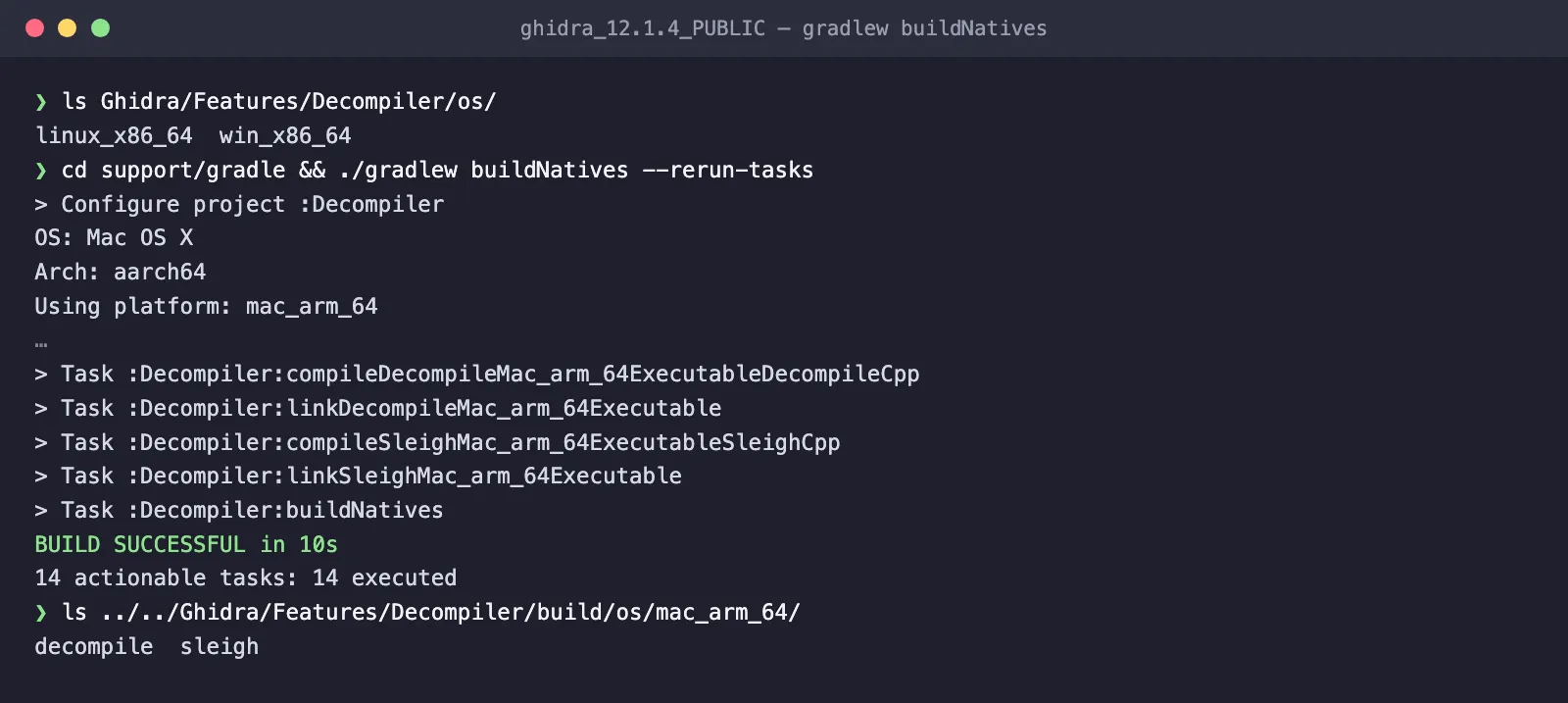
The Gradle wrapper downloads Gradle on first use, so this step needs internet once.
Step 3: Install the GhidraMCP Extension
Another small trap: the file you download from the GhidraMCP releases page, GhidraMCP-release-2-0.zip, is a wrapper. Unzip it first. Inside are three files:
GhidraMCP-release-2-0/ ghidra_12.1.4_PUBLIC_20261010_GhidraMCP.zip <- the Ghidra extension ghidra_mcp-2.0.0-py3-none-any.whl <- the Python MCP server ghidra_mcp-2.0.0.tar.gzThen, in Ghidra:
- File → Install Extensions, click +, and pick the inner
ghidra_12.1.4_PUBLIC_20261010_GhidraMCP.zip. - Restart Ghidra.
- Open a program in the CodeBrowser. Ghidra notices the new extension and asks whether to configure it:
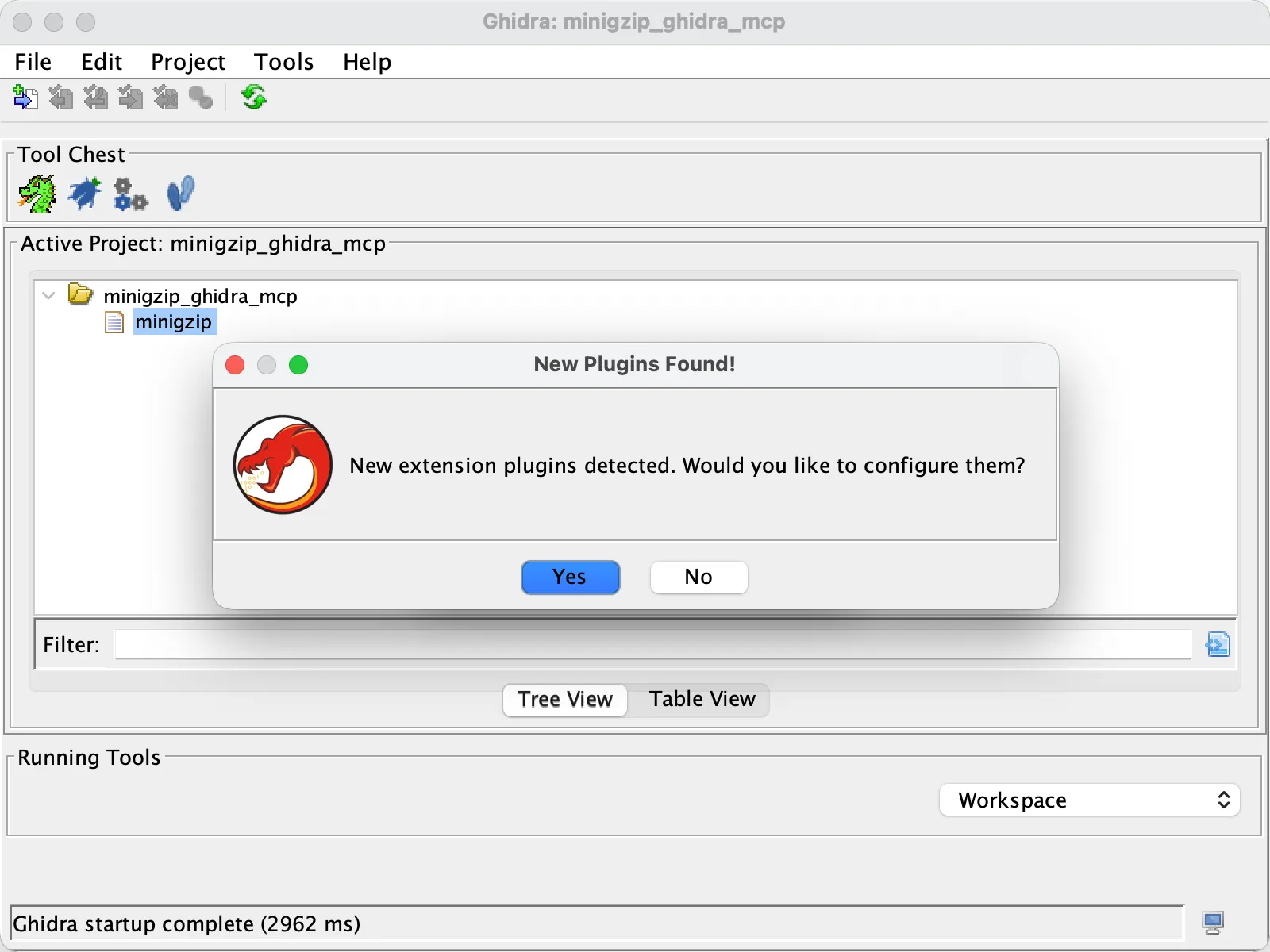
- Click Yes and tick GhidraMCPPlugin (description “GhidraMCP backend”):
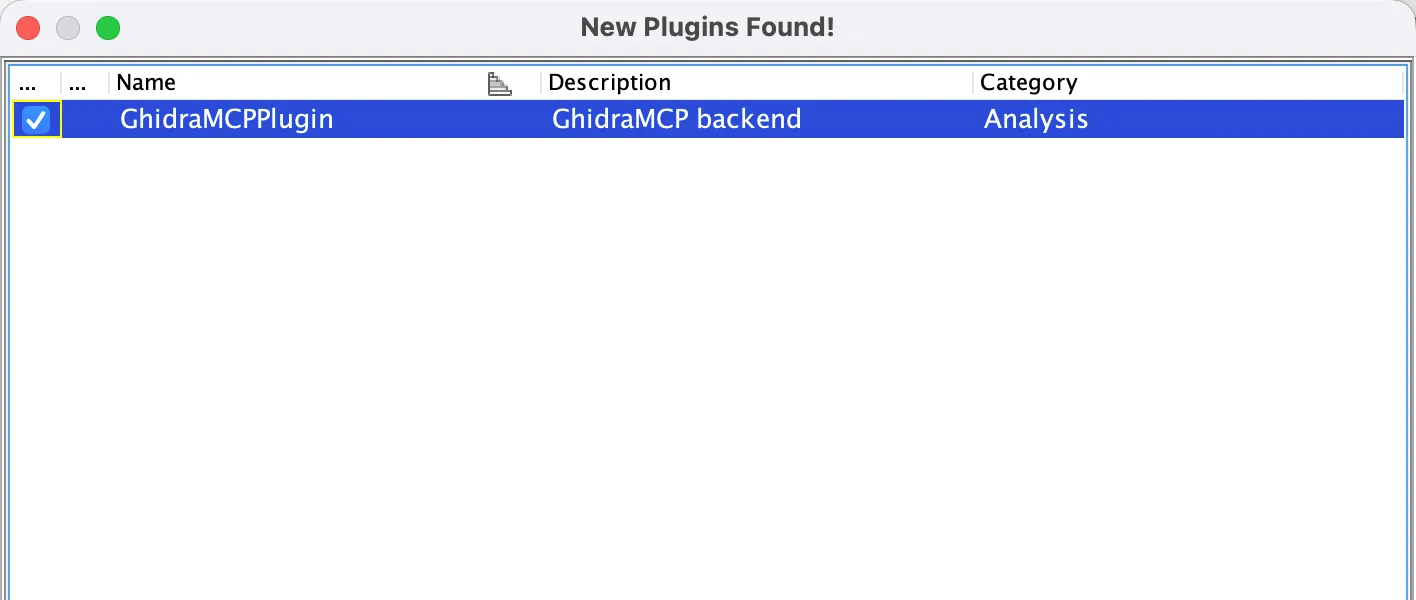
If you clicked No, you can enable it later under File → Configure in the CodeBrowser. Once it’s on, Ghidra’s application.log shows GhidraMCP backend listening on 127.0.0.1:8080.
The extension version must match your Ghidra version exactly (version=12.1.4 in its extension.properties). Ghidra copies it to ~/Library/ghidra/ghidra_12.1.4_PUBLIC/Extensions/GhidraMCP/ on macOS, which is also where headless mode looks for it.
Port 8080 already taken? It was on my machine: an SSH port forward was listening on 8080. Check with lsof -nP -iTCP:8080 -sTCP:LISTEN. If something is there, change Edit → Tool Options → GhidraMCP HTTP Server → Server Port in Ghidra and point the MCP server at the new port with --ghidra-server http://127.0.0.1:<port>/. Headless mode doesn’t have this problem because it picks a free port.
If the Python side can’t reach the plugin, it doesn’t fail at startup. It only logs a warning, and every tool call fails later:
WARNING:ghidra_mcp:GhidraMCP backend at http://127.0.0.1:8089/ is not reachable yet; tools will fail until Ghidra is running with the plugin enabled.So if your AI app shows the Ghidra tools but every call errors, look at this line in the MCP server’s log first.
Step 4: Connect Your MCP Client
GUI mode, Claude Code:
claude mcp add ghidra -- uvx --from git+https://github.com/LaurieWired/GhidraMCP ghidra-mcp --ghidra-server http://127.0.0.1:8080/GUI mode, Claude Desktop, Cursor and most other clients (JSON config):
{ "mcpServers": { "ghidra": { "command": "uvx", "args": [ "--from", "git+https://github.com/LaurieWired/GhidraMCP", "ghidra-mcp", "--ghidra-server", "http://127.0.0.1:8080/" ] } }}VS Code (.vscode/mcp.json): the same command under a servers key with "type": "stdio".
Headless mode needs GHIDRA_INSTALL_DIR, a Java 21 JAVA_HOME, Python 3.13 and the headless extra:
{ "mcpServers": { "ghidra": { "command": "uvx", "args": [ "--python", "3.13", "--from", "ghidra-mcp[headless] @ git+https://github.com/LaurieWired/GhidraMCP", "ghidra-mcp", "--headless", "--binary", "/Users/you/tools/ghidra-demo/minigzip", "--project", "/Users/you/tools/ghidra-demo/proj" ], "env": { "JAVA_HOME": "/Users/you/tools/jdk-21.0.12.1+1/Contents/Home", "GHIDRA_INSTALL_DIR": "/Users/you/tools/ghidra_12.1.4_PUBLIC" } } }}With this config Claude Code connected and listed all 28 tools as mcp__ghidra__*. --project keeps the Ghidra project between runs and saves the AI’s renames when the session ends. Without it you get a temporary project that’s thrown away.
If your client only accepts a URL, run the server yourself with --transport streamable-http --mcp-host 127.0.0.1 --mcp-port 8081 and add http://127.0.0.1:8081/mcp.
Hands-On: Find zlib’s Checksums in a Stripped Binary
The Target
minigzip is the small gzip clone in zlib’s test/ folder. It’s a good practice target: it’s open source, so you can check every answer against the source, and it statically links the whole compression library, so there’s plenty to find. I built it with zlib’s own makefile and stripped all symbols:
curl -LO https://github.com/madler/zlib/releases/download/v1.3.2/zlib-1.3.2.tar.gzshasum -a 256 zlib-1.3.2.tar.gz # bb329a0a…de64f0119d16, same as the release pagetar xzf zlib-1.3.2.tar.gz && cd zlib-1.3.2./configure --static && make libz.a minigzip # clang -O3, arm64cp minigzip ~/tools/ghidra-demo/ && strip ~/tools/ghidra-demo/minigzipnm now shows only the imported libc symbols. The 102 KB arm64 binary still works (./minigzip t.txt makes t.txt.gz, -d restores it), but inside Ghidra every zlib function is just FUN_<address>.
The Client
You’d normally let Claude, Cursor or VS Code drive the tools. To show exactly which calls happen and what comes back, I wrote a small MCP client with the official Python SDK that starts ghidra-mcp in headless mode and calls the tools one by one, the same way an AI app does. The core of it:
import asyncio, json, osfrom mcp import ClientSession, StdioServerParametersfrom mcp.client.stdio import stdio_client
HOME = os.path.expanduser("~")SERVER = StdioServerParameters(    command="uvx",    args=["--python", "3.13", "--from",          "ghidra-mcp[headless] @ git+https://github.com/LaurieWired/GhidraMCP",          "ghidra-mcp", "--headless",          "--binary", f"{HOME}/tools/ghidra-demo/minigzip",          "--project", f"{HOME}/tools/ghidra-demo/demo-proj"],    env={**os.environ,         "JAVA_HOME": f"{HOME}/tools/jdk-21.0.12.1+1/Contents/Home",         "GHIDRA_INSTALL_DIR": f"{HOME}/tools/ghidra_12.1.4_PUBLIC"},)
async def call(session, tool, **args):    result = await session.call_tool(tool, args)    text = "\n".join(c.text for c in result.content if hasattr(c, "text"))    return json.loads(text)          # GhidraMCP 2.0 tools return JSON
async def main():    async with stdio_client(SERVER) as (read, write):        async with ClientSession(read, write) as session:            await session.initialize()            print(await call(session, "get_program_info"))            # ... the steps below
asyncio.run(main())Step 1: Get Oriented
The first run imports and analyzes the binary, which took about 6 seconds here. Then the usual first questions: what is this file, what strings does it have, how many functions?
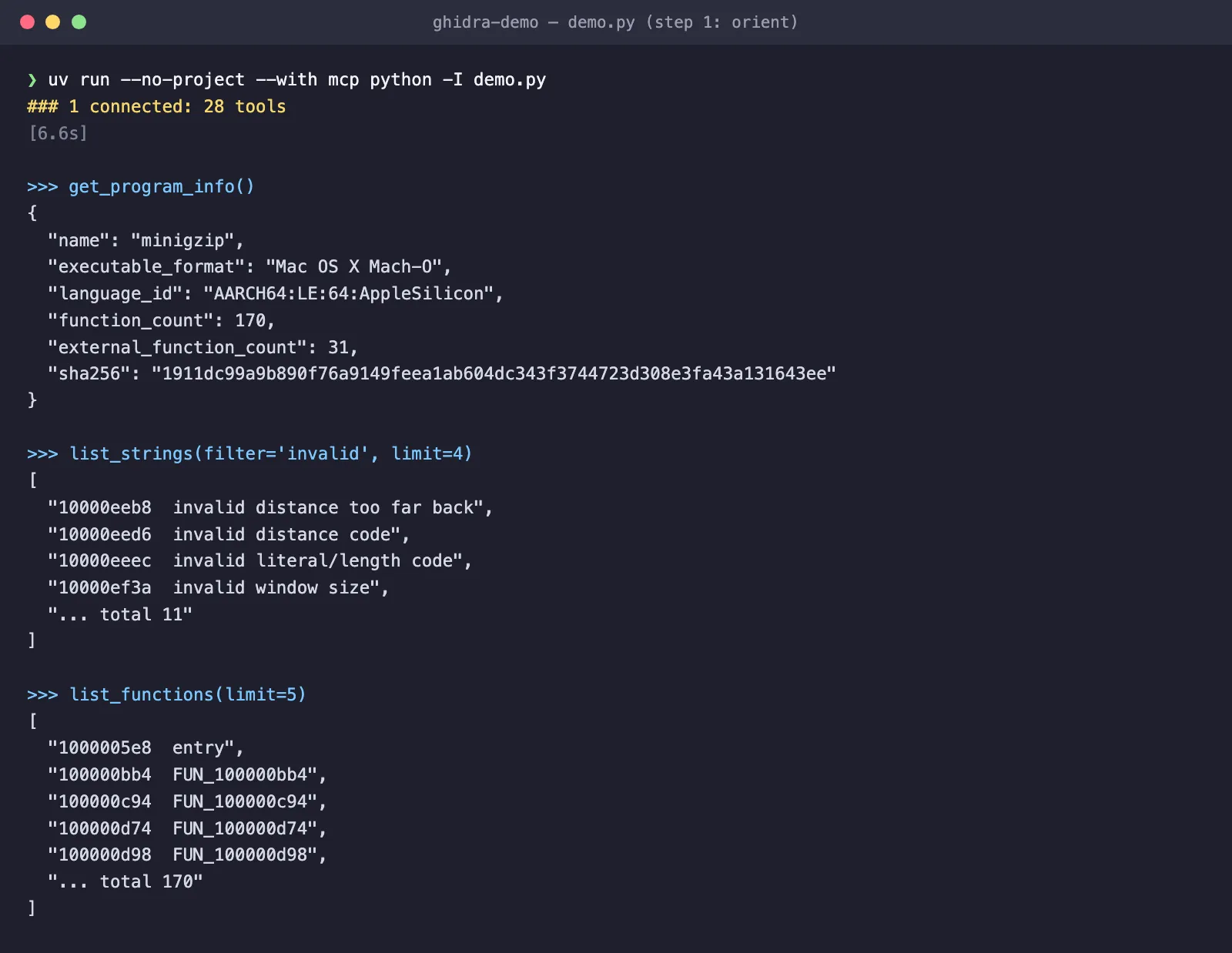
Strings like invalid distance too far back and incorrect header check are zlib’s inflate error messages, so even without symbols you know the library inside. The 170 functions are all anonymous except entry.
Step 2: Find the Interesting Functions
Checksums and file formats leave fingerprints in code: Adler-32 reduces modulo 65521 (0xfff1), the reflected CRC-32 polynomial is 0xEDB88320, and gzip files start with the magic bytes 1f 8b. GhidraMCP has no “search for a constant” tool, so the client decompiles every function and greps the C, using only list_functions and decompile_function_by_address:
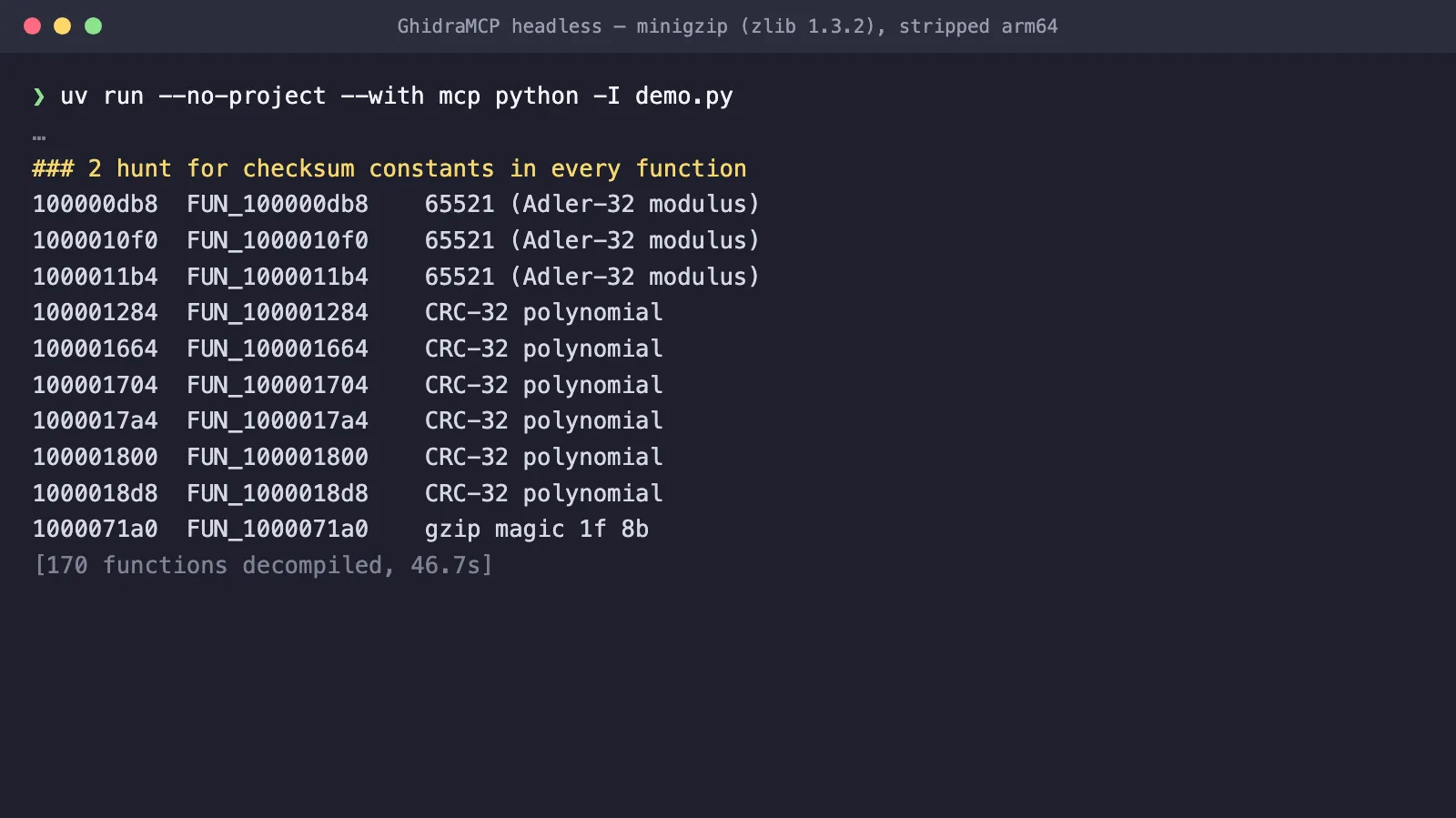
consts = {"0xfff1": "65521 (Adler-32 modulus)", "0xedb88320": "CRC-32 polynomial", "0x8b1f": "gzip magic 1f 8b"}for f in (await call(session, "list_functions", limit=500))["items"]: code = (await call(session, "decompile_function_by_address", address=f["address"])).get("code") or "" hits = [v for k, v in consts.items() if k in code] if hits: print(f'{f["address"]} {f["name"]:<16} {", ".join(hits)}')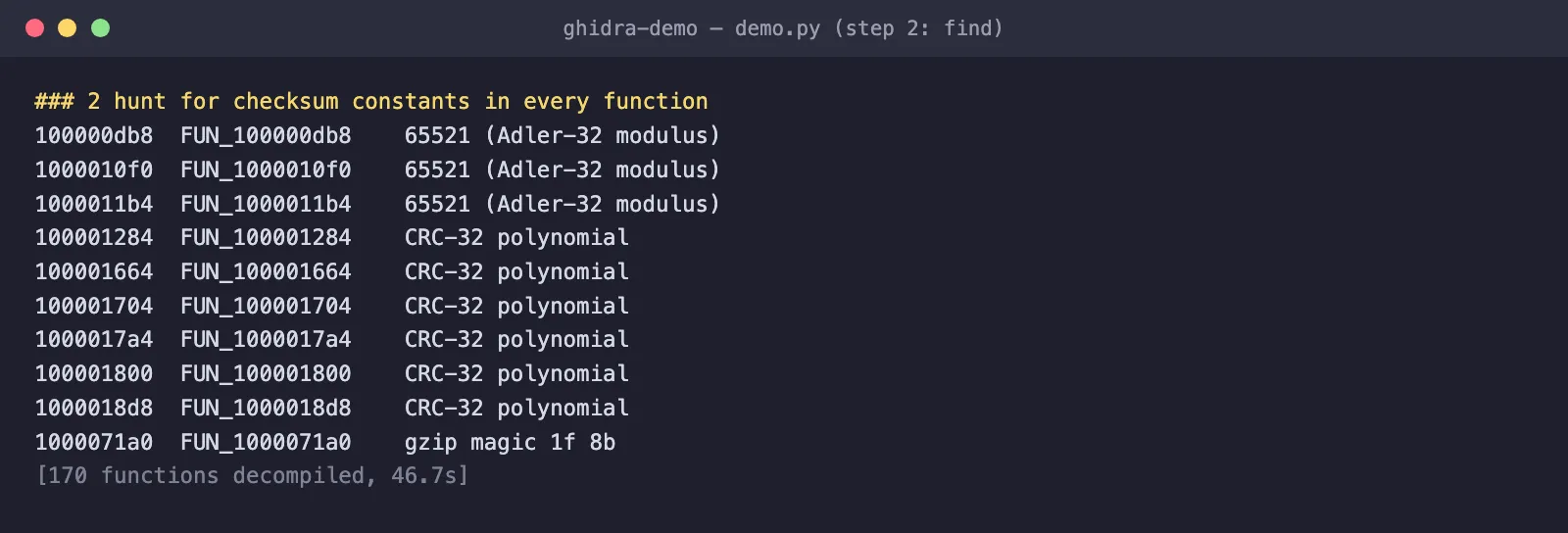
Ten candidates out of 170, and the whole pass took about 40 seconds. This is the kind of brute-force search that’s tedious by hand and cheap for an AI with tool access.
Step 3: Read the Candidate
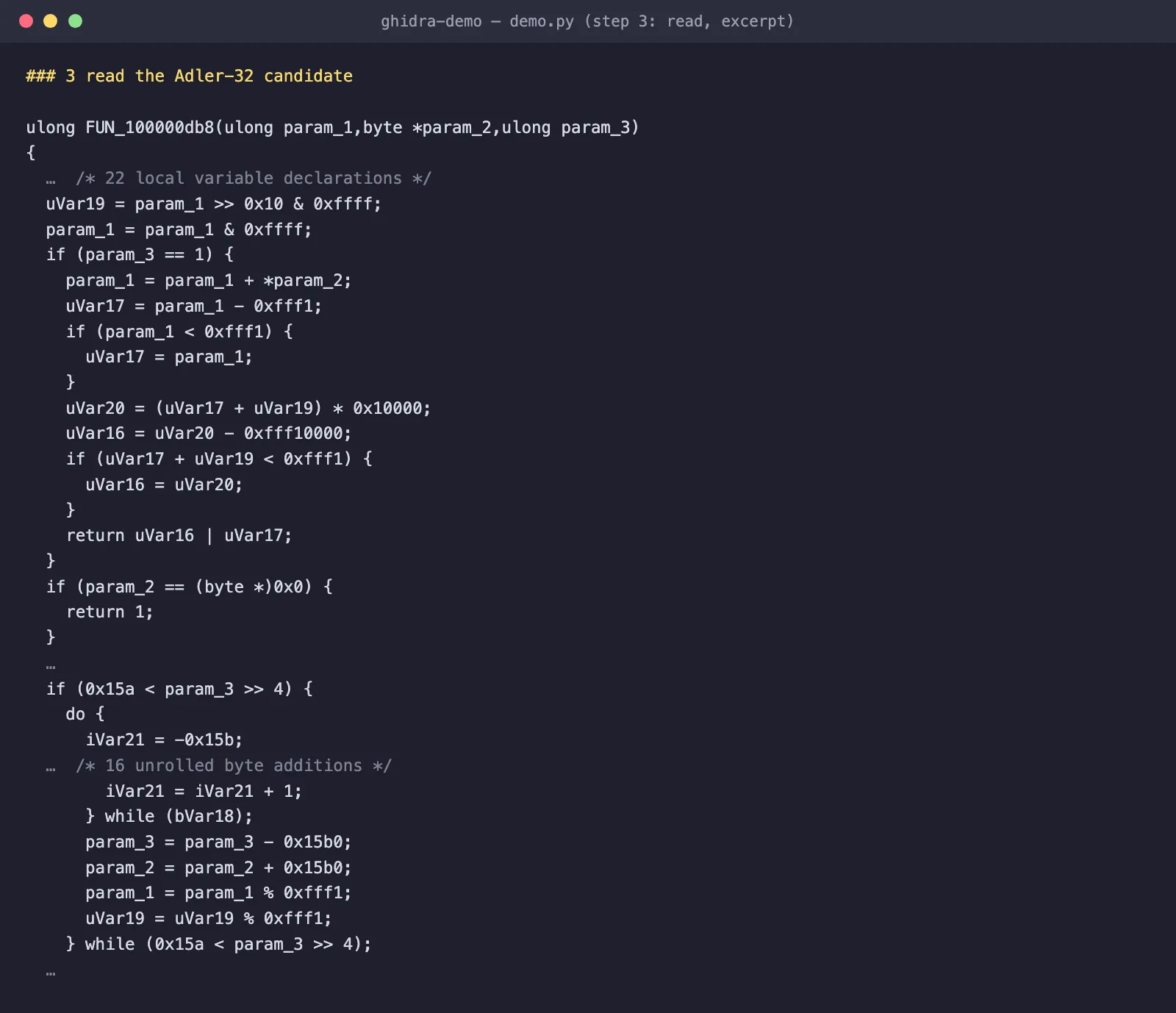
Reading FUN_100000db8:
- It splits the first argument into two 16-bit sums (
>> 0x10 & 0xffffand& 0xffff). - It returns
1when the buffer pointer isNULL. - It processes the input in blocks of
0x15b0= 5552 bytes before reducing modulo0xfff1= 65521.
5552 is zlib’s NMAX, the largest block you can sum before the 32-bit accumulators could overflow. This is adler32_z(adler, buf, len) from adler32.c, with the 16-byte inner loop unrolled by clang -O3. The other two 0xfff1 hits are the adler32_combine helpers, FUN_100001284 is crc32_z, and FUN_1000071a0 (the one with the gzip magic, and 53 KB of decompiled C) is inflate().
The get_xrefs_to tool connects the rest: the string gunzip is used only by entry, which is minigzip’s main (it checks argv[0] for gunzip and zcat). From there the call graph leads to gzopen, gzread, gzclose and minigzip’s own gz_compress / gz_uncompress.
Step 4: Write the Findings Back into Ghidra
Answers in a chat window are easy to lose. The real value is writing them into the Ghidra project, where every later decompile (yours or the AI’s) gets better:
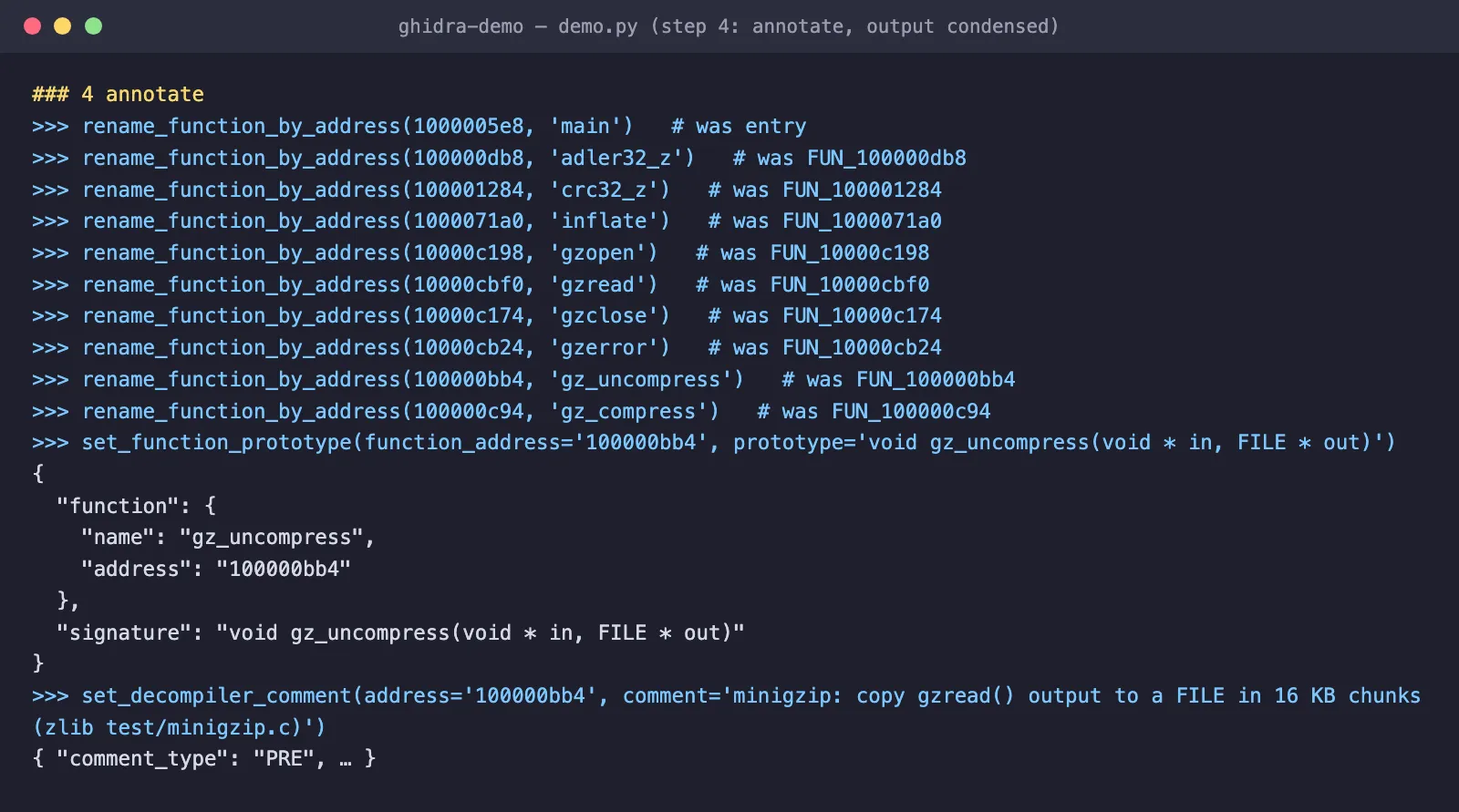
Step 5: Read Again
Here’s gz_uncompress after the renames. Callee names flow into every caller, so the loop reads as what it is: gzread 16 KB at a time, fwrite it, then fclose and gzclose.
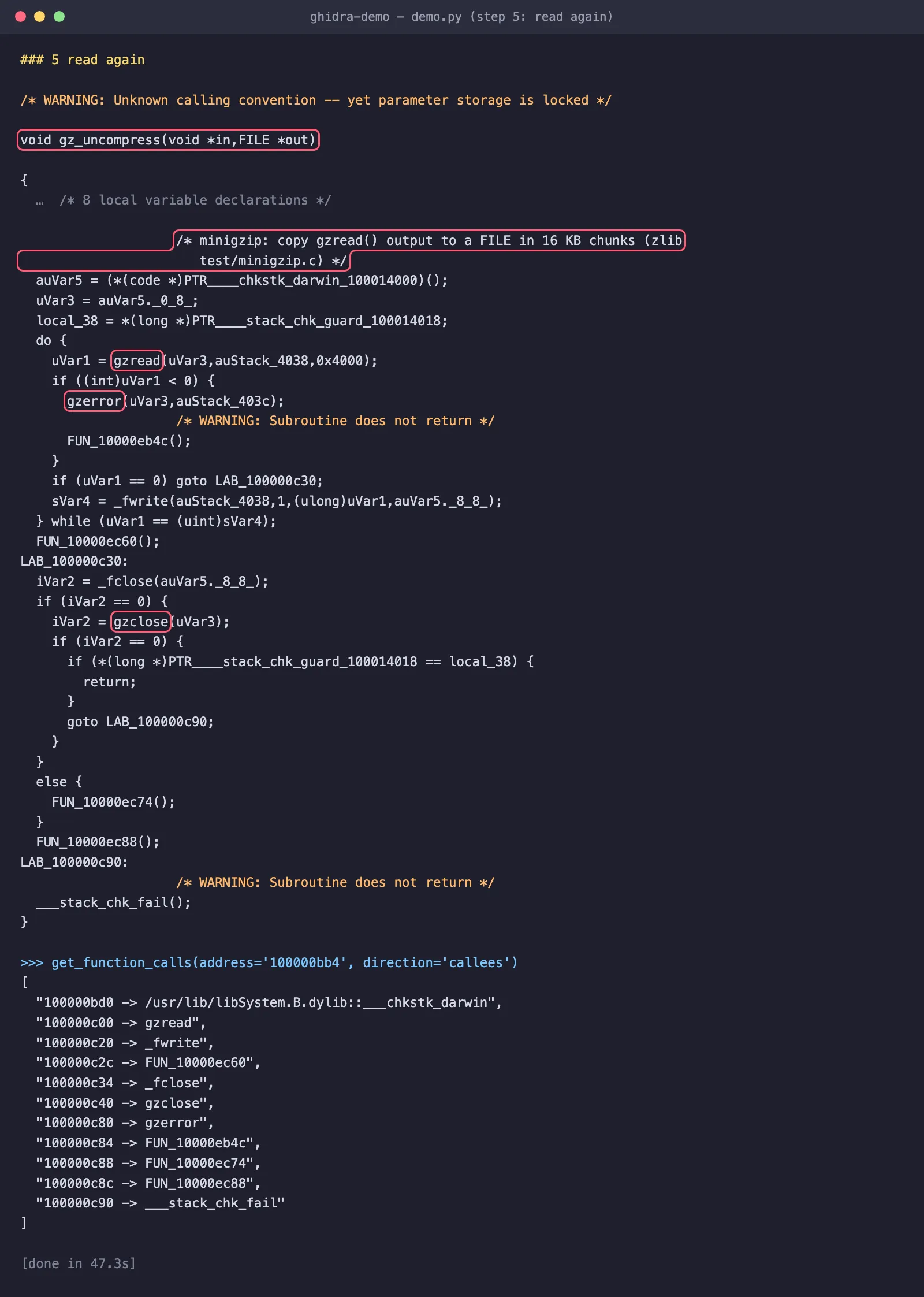
The renames are stored in the Ghidra project, so they also show up when you open it in the GUI. Here’s the same address in the same binary in Ghidra’s CodeBrowser, first in a fresh import and then in the project the MCP session saved:
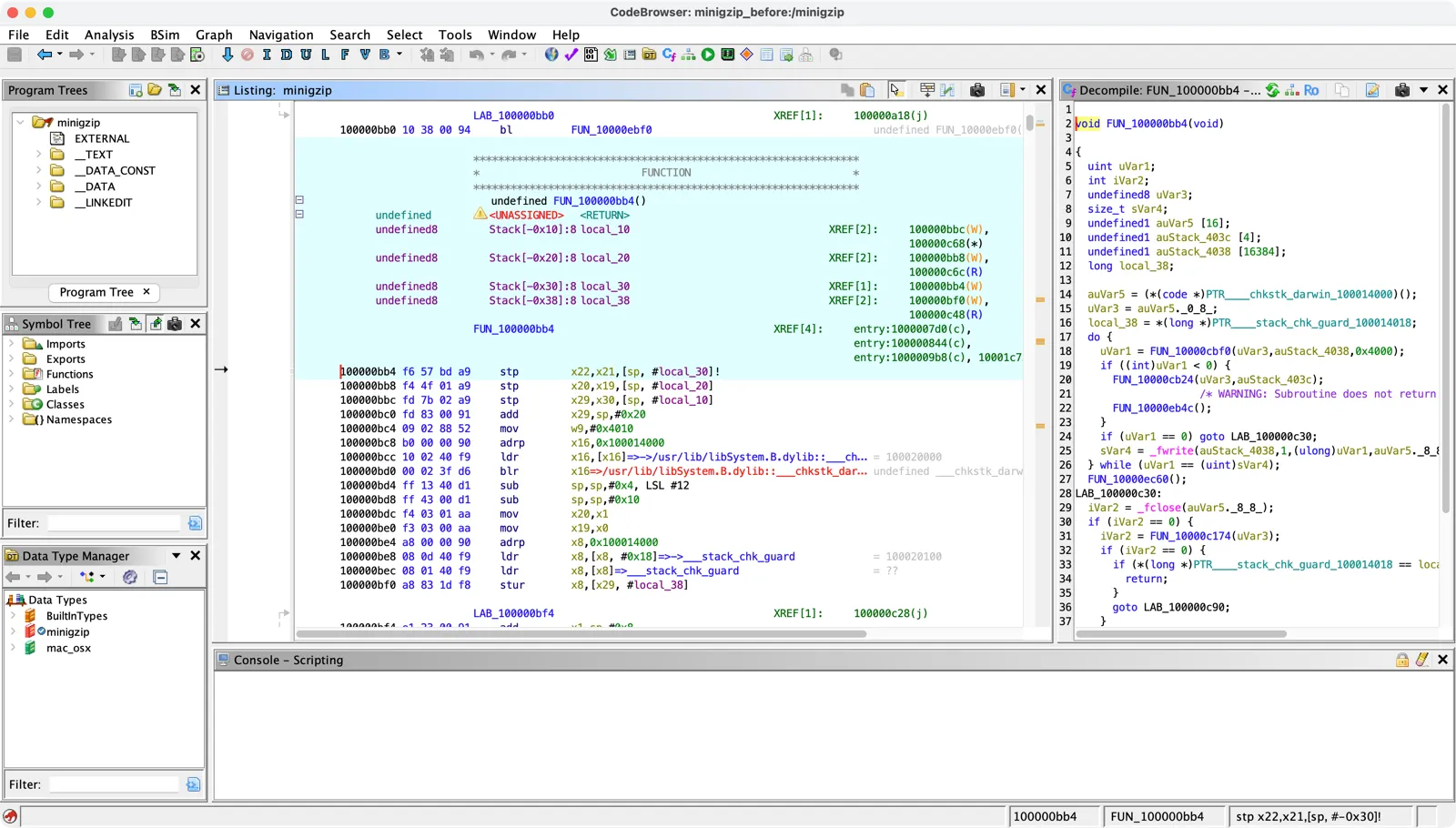
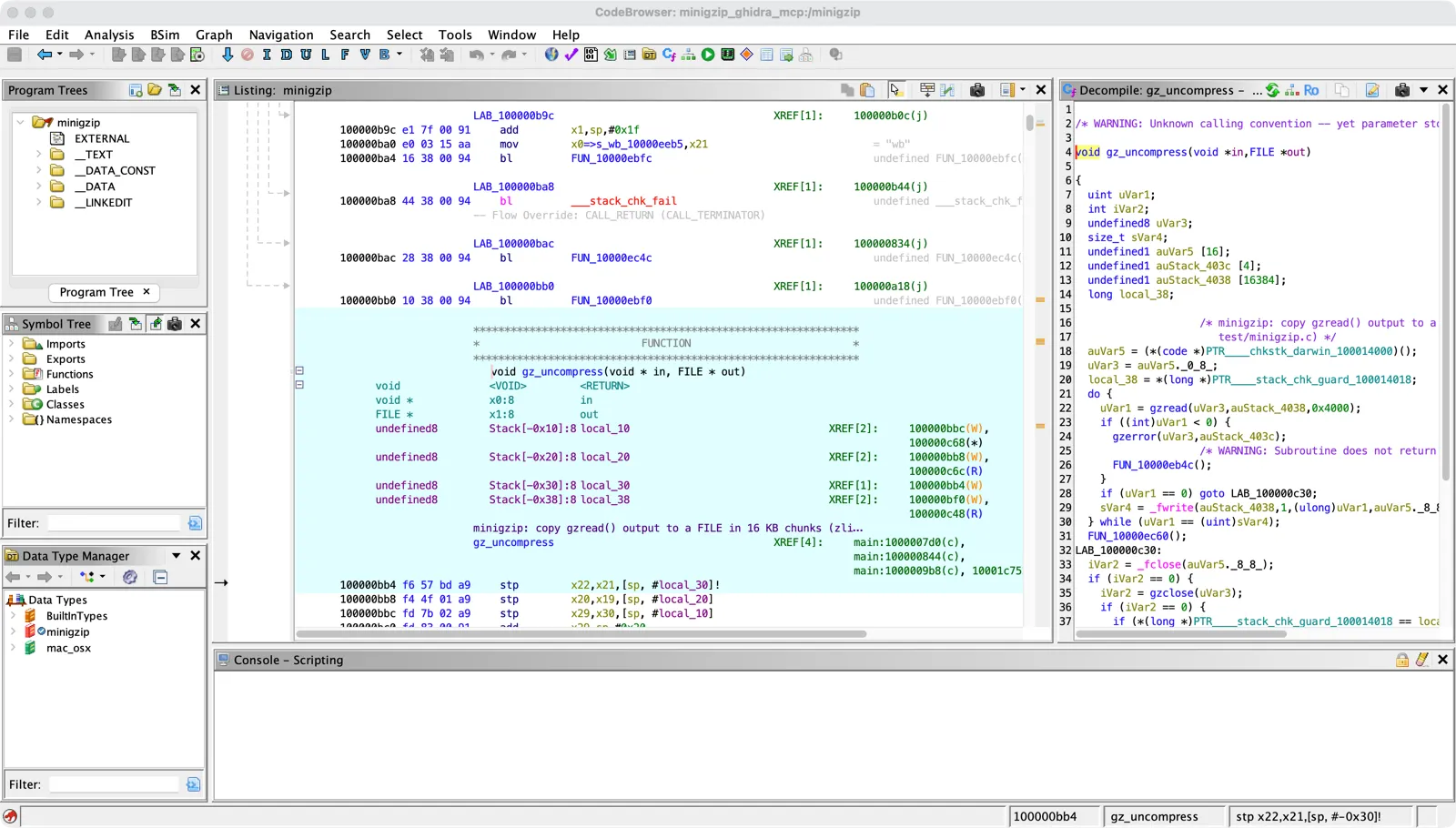
Two honest observations from this step:
- The prototype didn’t fully take.
set_function_prototypesucceeded, but the decompiler now printsWARNING: Unknown calling convention -- yet parameter storage is lockedand still reads the arguments out of___chkstk_darwin’s return value. Any macOS arm64 function with a big stack buffer (here 16 KB) starts with a call to___chkstk_darwin, and Ghidra 12.1.4 doesn’t model it well. The names helped; the types didn’t. Expect cases like this and check the output instead of trusting that a tool call “succeeded”. - Error helpers stay anonymous.
FUN_10000eb4c,FUN_10000ec60and friends are minigzip’serror()paths that clang outlined into tiny cold functions. They’re the next thing to ask the AI to name.
When I started ghidra-mcp again on the same --project, the log said Opening existing program /minigzip from the project and search_functions_by_name("gz") returned all six gz* names, so the work survives the session.
Let Claude Code Drive
The script shows the mechanics. The point of MCP, though, is that the AI picks the calls itself. So I ran the same kind of task with Claude Code as the client: the same stripped binary in a fresh Ghidra project, the headless config from Step 4 saved as mcp.json, and only the Ghidra tools allowed (--tools "" switches off Claude Code’s built-in tools, so it can’t cheat by reading the zlib source):
Answer in English. You have a Ghidra MCP server with a stripped arm64 macOS binary called minigzip already loaded and analyzed. Use only the ghidra tools.1. Tell me what this program is and which library it contains.2. Find the function main calls to decompress a .gz file to a FILE (the loop that reads 16 KB at a time and fwrites it). Explain it in two sentences.3. Rename that function and the zlib functions it calls to their real zlib/minigzip names, and add a one-line decompiler comment on it.4. Finish with a short table: address, old name, new name, evidence.With --output-format stream-json, every tool call ends up in run.jsonl. Here they are in order:
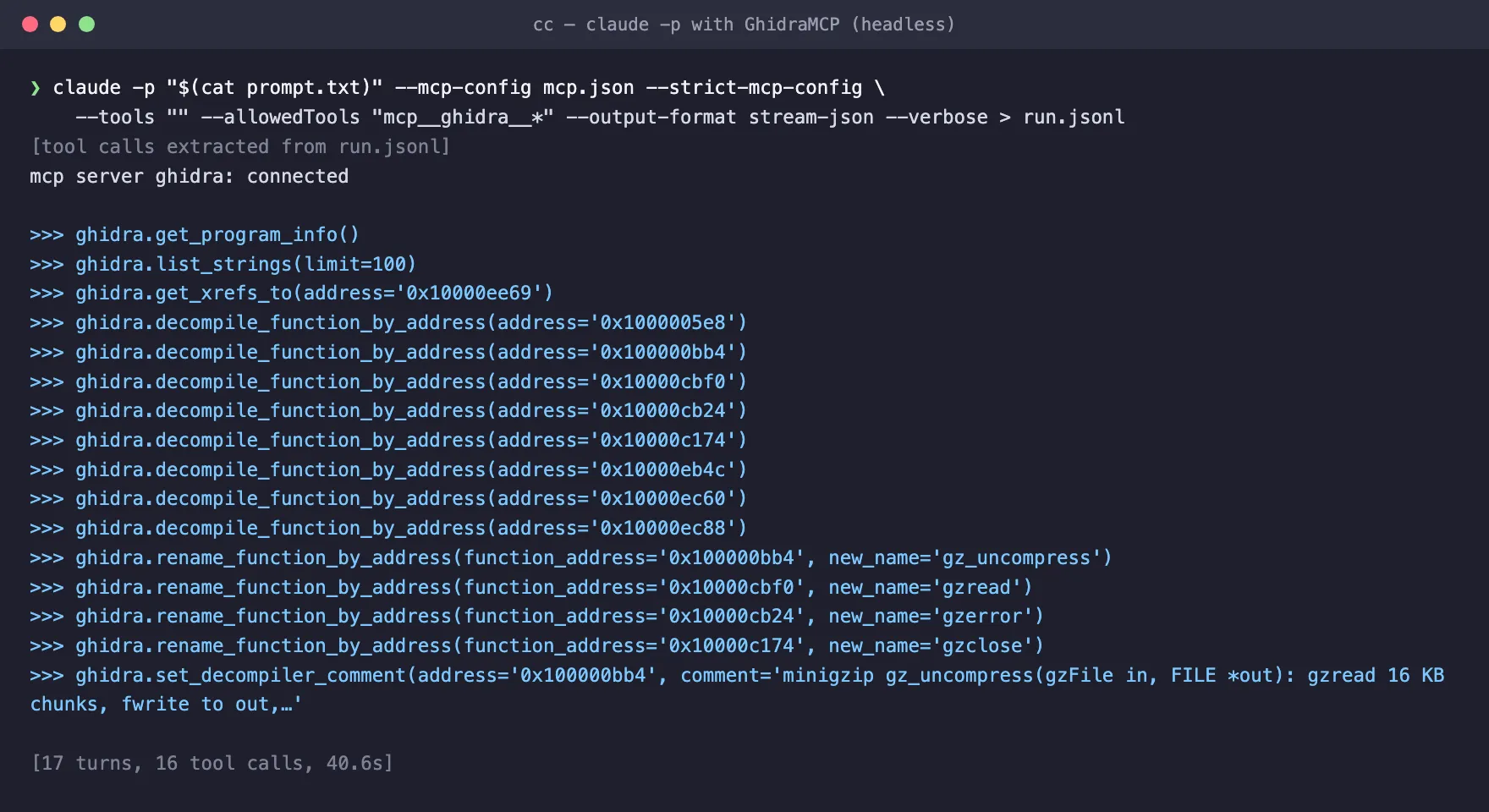
The path it took is close to what a human reverser would do:
- It identified the program from strings alone: the zlib version banners (
inflate 1.3.2 Copyright 1995-2026 Mark Adler) and minigzip’s own messages (can't gzdopen stdin,failed fwrite). - It followed
failed fwritewithget_xrefs_toto an error stub, then decompiledmainand the 16 KB loop. - Before naming the callees it decompiled each one and matched it to zlib internals. For example,
gzreadchecksstate->mode == 0x1c4f, which is zlib’sGZ_READ(7247). - It left minigzip’s outlined
error()stubs alone because they aren’t zlib functions.
Its final table, with the evidence column shortened to fit:

All four names match zlib 1.3.2’s test/minigzip.c and gzread.c, gzlib.c and gzclose.c, which I checked against the source afterwards. Its answer also explained the ___chkstk_darwin problem from Step 5 by itself: the probe for the 16 KB stack buffer hides the real arguments in the decompiler output. The whole run took 17 turns, about 40 seconds, and Claude Code reported a cost of $0.28.
A Prompt Workflow for Real Sessions
With an AI app instead of a script, the same steps become prompts:
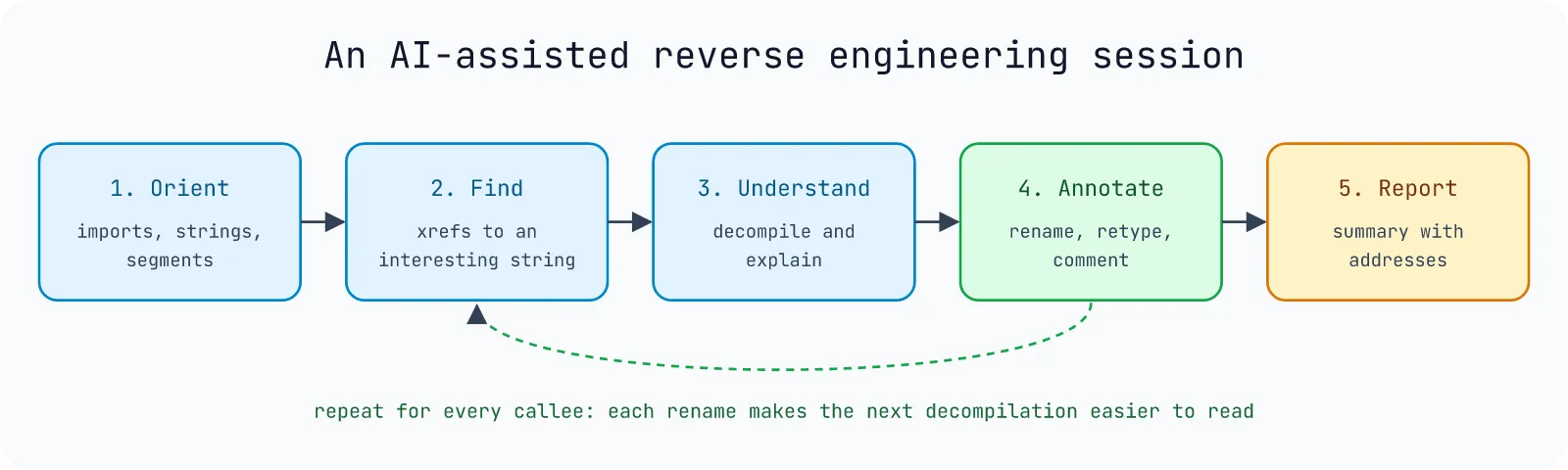
- Orient. “Give me an overview of this program: architecture, imports, interesting strings.” →
get_program_info,list_imports,list_strings. - Find. “Which functions contain 0xfff1 or 0xedb88320? Which ones use the string ‘gunzip’?” →
decompile_function_by_addressin a loop,get_xrefs_to. - Understand and name. “Explain FUN_100000db8, then rename it and add a one-line comment.” →
rename_function_by_address,set_decompiler_comment. - Walk the call graph. “Do the same for every function main calls, depth 2.” →
get_function_calls, then repeat. - Report. “Write a short report of what this binary does, with addresses.”
The full tool list, grouped by job:
| Job | Tools |
|---|---|
| Get oriented | get_program_info, list_functions, list_segments, list_imports, list_exports, list_strings, list_classes, list_methods, list_namespaces, list_data_items |
| Find things | search_functions_by_name, get_function_by_address |
| Read code | decompile_function, decompile_function_by_address, disassemble_function, read_memory |
| Follow the flow | get_xrefs_to, get_xrefs_from, get_function_xrefs, get_function_calls |
| Improve the database | rename_function, rename_function_by_address, rename_data, rename_variable, set_function_prototype, set_local_variable_type, set_decompiler_comment, set_disassembly_comment |
That’s the 28 tools headless mode reports. In GUI mode the plugin also offers get_current_function and get_current_address, which read where your cursor is, so you can click a function in Ghidra and just ask “what does this one do?”.
Limits and Risks
- The AI can be confidently wrong. Optimized code is hard to read even for people; the
___chkstk_darwincase above is a small example. Treat names and comments as hypotheses, verify the important ones, and keep the project under version control or work on a copy. - Prompt injection from the binary. Strings inside the binary go into the model’s context. A malicious sample could contain text written to mislead an AI. Don’t give the same agent tools that touch the outside world (shell, email, uploads) while it reads untrusted samples.
- Never run the sample. GhidraMCP only does static analysis, which is good; keep it that way and keep malware inside an isolated VM.
- Confidentiality. Decompiled code and strings are sent to whatever model your client uses. For sensitive or proprietary binaries, check your company’s policy or use a local model.
- Local HTTP server. The plugin listens on loopback only. Don’t expose it on a shared network: anyone who can reach it can read and modify your Ghidra project.
FAQ
Is GhidraMCP free?
Yes. Ghidra is free and open source (from the NSA), and GhidraMCP is open source under Apache-2.0. You only pay for the AI model you connect, if any.
Does GhidraMCP work on Apple Silicon Macs?
Yes, but build Ghidra’s native components first (cd support/gradle && ./gradlew buildNatives), because the release has no macOS binaries. On my M-series Mac that took about 10 seconds.
Can I use GhidraMCP without the Ghidra GUI?
Yes. ghidra-mcp --headless --binary <file> runs Ghidra through PyGhidra, analyzes the file and serves the same tools. Add --project DIR to keep the results.
Where do I download ghidra_12.1.4_PUBLIC?
From the official Ghidra 12.1.4 release page on GitHub: the asset is ghidra_12.1.4_PUBLIC_20260921.zip (about 543 MB, SHA-256 ddac49f903da9d5bac833e5cc79395098b9c33cfd3279be5f31bd00387d2d4db). Compare its SHA-256, unzip it, and run ghidraRun (or ghidraRun.bat on Windows) inside ghidra_12.1.4_PUBLIC with JDK 21 installed. Avoid third-party mirrors.
Which Ghidra version do I need?
The extension release must match your Ghidra version; GhidraMCP 2.0 targets Ghidra 12.1.4. Ghidra 12.2 (October 22, 2026) is newer, but the prebuilt GhidraMCP 2.0 extension won’t load in it. For 12.2 or any other version, build the extension from source against your GHIDRA_INSTALL_DIR.
Does GhidraMCP work with local models?
Yes, through any MCP client that supports a local model. Expect weaker results than frontier models on hard code, but the binary stays on your machine.
Ghidra MCP vs IDA Pro MCP?
Same idea, different disassembler. Community MCP servers exist for IDA Pro and Binary Ninja too. Ghidra’s advantage is that the whole stack is free.