Hey there! Welcome to this Kubernetes tutorial! Ever dreamed of running a real multi-node Kubernetes (K8s) cluster on your laptop instead of settling for Minikube’s diet version? A proper real multi-node Kubernetes environment requires virtual machines, and until last year, VMware Fusion was a paid product—an obstacle for many. I know there are alternatives, like KVM, Oracle VirtualBox, and even Minikube’s so-called multi-node mode ----but let’s be real: I’ve got a beast of a MacBook Pro, so why not flex its muscles and spin up a legit multi-node cluster? 🚀
But great news! On November 11, 2024, VMware announced that Fusion and Workstation are now free for all users! The moment I stumbled upon this announcement, I was thrilled. Time to roll up my sleeves, fire up some VMs, and make this cluster a reality. Kick off my Kubernetes tutorial! Let’s dive in! 🚀
In this series of Kubernetes tutorial, I want to set up a full Kubernetes cluster on my MacBook Pro using VMware Fusion, creating multiple VMs to simulate real-world deployment and practice my DevOps and IaC (Infrastructure as Code) skills.
Enable firewalld and open necessary ports (Yes! Many online articles disable firewalld setup in their tutorils, but I want lift the bar! Get it work with iptables like a production environment!)
Cluster Formation
Setup k8s-1 as Master Node with Flannel as CNI plugin
Setup k8s-2, k8s-3, k8s-4 as Worker Nodes and join the cluster
Test/Deploy Nginx Service into Cluster via NodePort
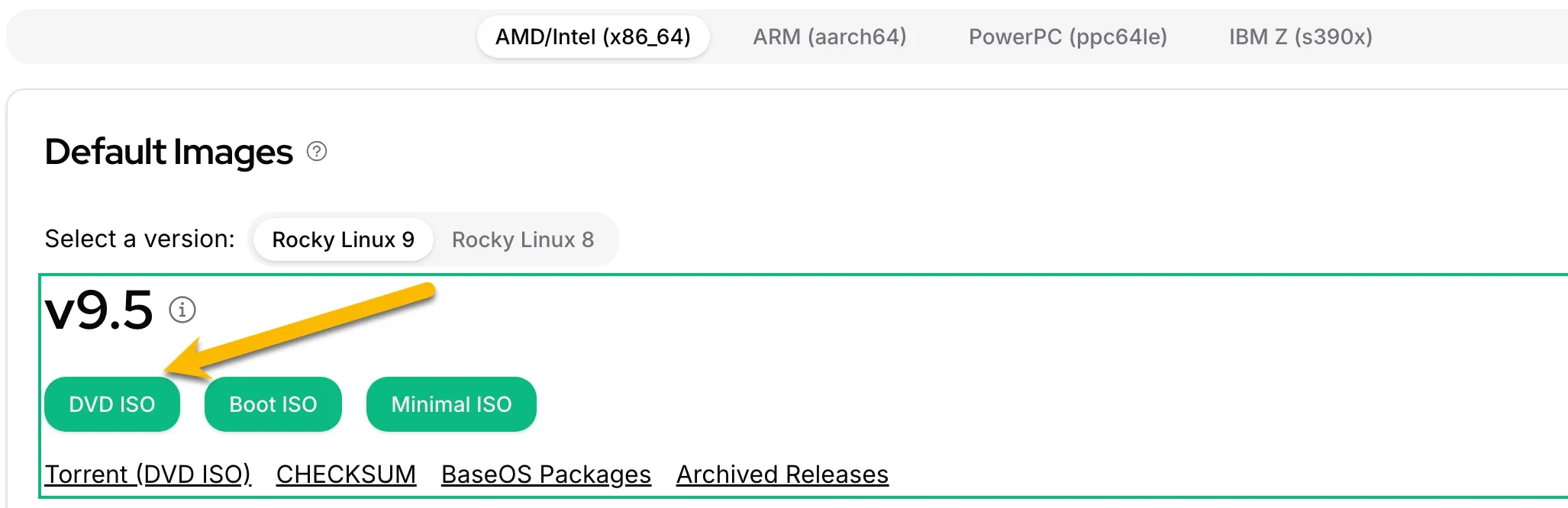
I used to work with CentOS and love it, since CentOS 9 was discontinued at the end of 2021, Rocky Linux was announced as a replacement for it. So I will setup Kubernetes on Rocky Linux 9.
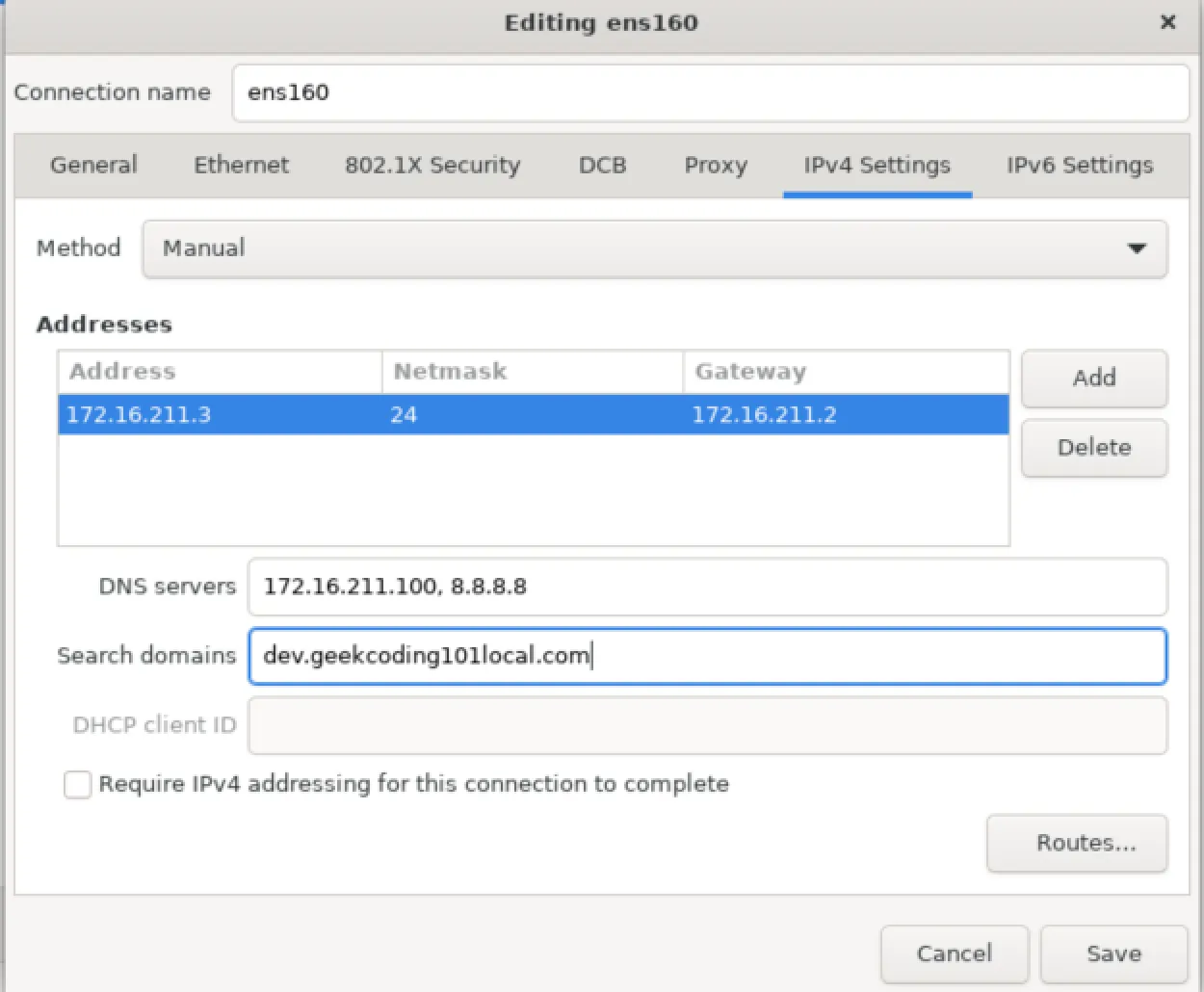
The network adapter name ens160 in Rocky 9 is assigned based on Predictable Network Interface Names (PNIN), a naming convention introduced in systemd v197 to ensure stable and predictable interface names across reboots and hardware changes. The name ens160 specifically follows the “Firmware/BIOS Index-based Naming” scheme, where:
e stands for Ethernet.
n indicates it’s a network device.
s160 refers to the firmware (BIOS/UEFI) assigned index, which is based on how the hypervisor or hardware presents the device.
On VMware, the ens160 interface name is commonly assigned because VMware presents the first virtual NIC with firmware index 160. This is specific to VMware’s implementation.
This is out of the scope of our current blog post, feel free to add a comment if you want to see a post about how to override it.
[/infobox]
Once system is up, let’s disable firewalld, obvisouly I don’t stuck due to any firewall issue as a base VM image (We will turn it on when setting up Kubernetes cluster):
systemctl stop firewalld
systemctl disable firewalld
systemctl mask firewalld
disable: Disables the service from starting automatically at boot but doesn’t prevent manual starts.
mask: Prevents the service from being started manually or automatically by creating a link to /dev/null.
Thanks for your reading! I hope you enjoy my kubernetes tutorial so far!
I love this! It’s a must for any development environment settings!
It’s so annoying if you need to type password at every login!
[infobox title=“Tips”]
Rocky Linux 9 DVD has installed SSHD server by default.
[/infobox]
Typically, we should use ssh-agent for better key management and security, but since this is a base image and we just want password-less access from our local Mac to the new VMs, it’s simpler to prepare the authorized_keys file. This way, we can quickly enable password-less authentication without dealing with additional setup or dependencies! That’s what I will use in this kubernetes tutorial!
Perform the steps on local machine (mine is the macbook pro) :
ssh-keygen -t rsa
Just follow the steps, using default settings, you will get your key pairs at ~/.ssh/id_rsa.pub and~/.ssh/id_rsa. Save the output of content of ~/.ssh/id_rsa.pub by cating it:
cat ~/.ssh/id_rsa.pub
Log into baseimage as root to perform:
mkdir -p /root/.ssh/
touch /root/.ssh/authorized_keys
chmod 600 /root/.ssh/authorized_keys
vi /root/.ssh/authorized_keys
In above vi editor, paste your content of~/.ssh/id_rsa.pub and save it. Repeat above steps for creating .ssh folder and populate the /home/admin/.ssh/authorized_keys for admin account. Then restart sshd on base VM:
systemctl restart sshd
Test login to the base VM from your local machine, you will not need to type password:
ssh -vv root@172.16.211.3
ssh -vv admin@172.16.211.3
Using -vv at this moment is useful, because most likely your first time setup ssh passwordless authentication would fail due to this or that misconfiguration. With -vv you can spot the error message. Good luck!
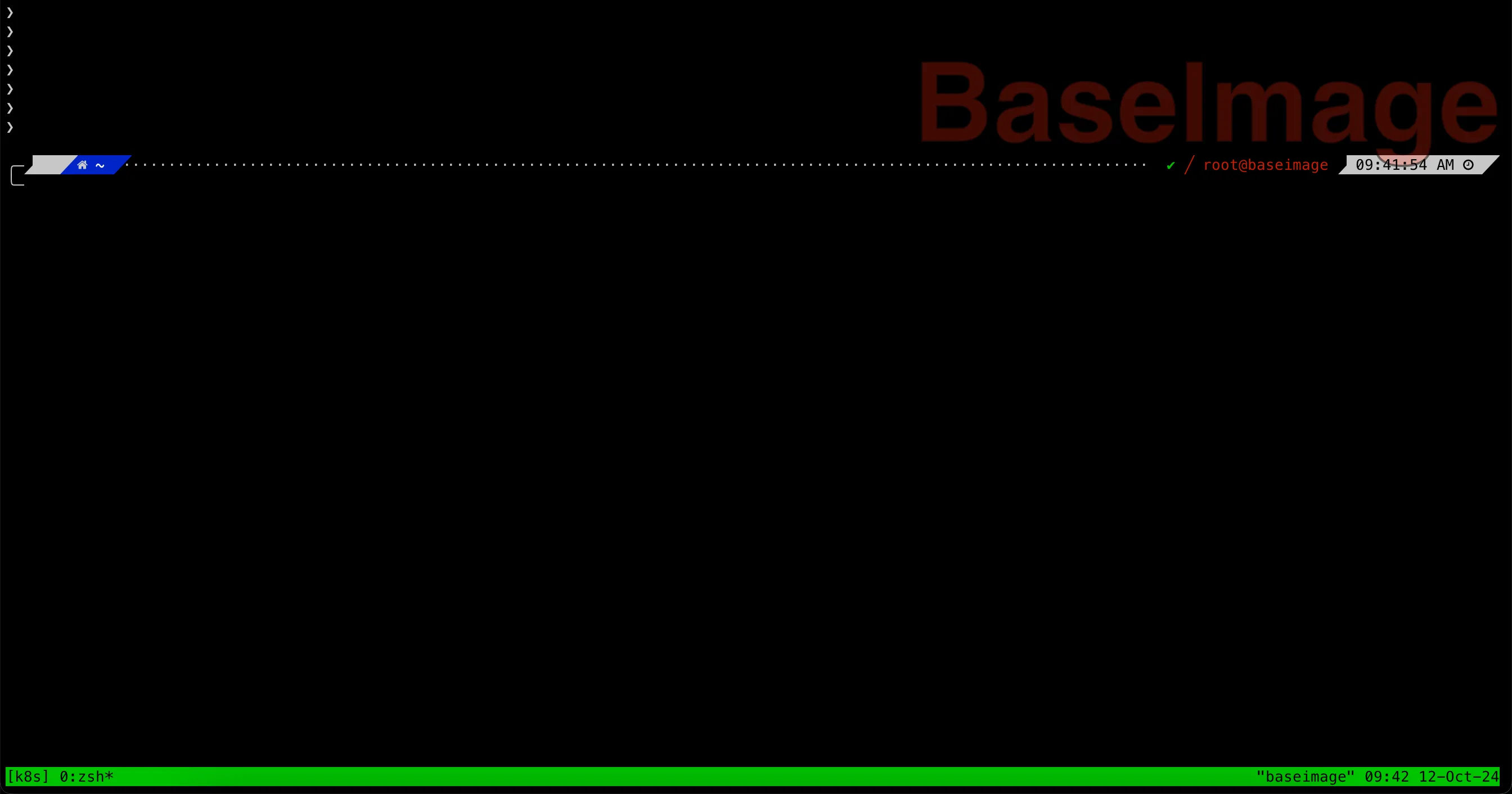
Zsh is the first basic thing I want to cover in this Kubernetes tutorial!
Zsh is the default shell on Mac. I want to have it on the Rocky Linux VM as well.
Install Zsh and Packages (Ensure Zsh is Installed)
Zsh should already be installed in the “Update OS and Install Packages” section. This guide is best viewed on GeekCoding101—where it was originally published
Install Oh-My-Zsh
Run the following command to install Oh-My-Zsh:
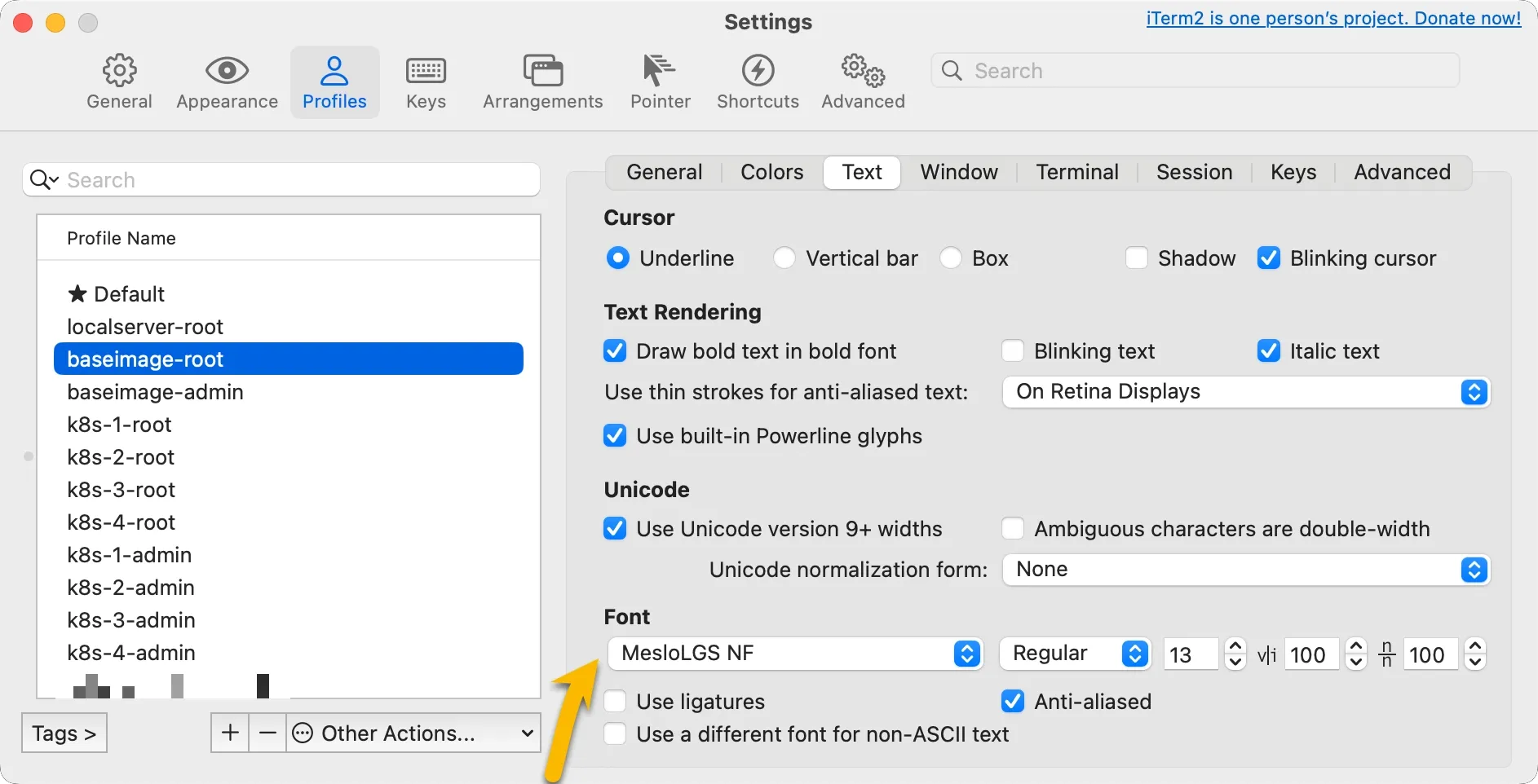
I am using iTerm2 , so configure the font for the profile as below:
Kubernetes tutorial part 1: iterm2 font settings
Update ~/.zshrc
Modify your .zshrc to use the shared paths (Here I used ~/.zshrc, but we don’t need this for every user, because later we will dump the content of ~/.zshrc to /etc/zshrc for all users):
export ZSH="/usr/share/oh-my-zsh"
ZSH_THEME="powerlevel10k/powerlevel10k"
Copy Configured Files to /etc/skel for New Users
Once the configuration is complete, copy the necessary files to the /etc/skel directory for new users:
cp ~/.zshrc /etc/skel/
cp ~/.p10k.zsh /etc/skel/
chmod 644 /etc/skel/.zshrc /etc/skel/.p10k.zsh
Set Default Shell for New Users
Update /etc/default/useradd to set Zsh as the default shell for new users:
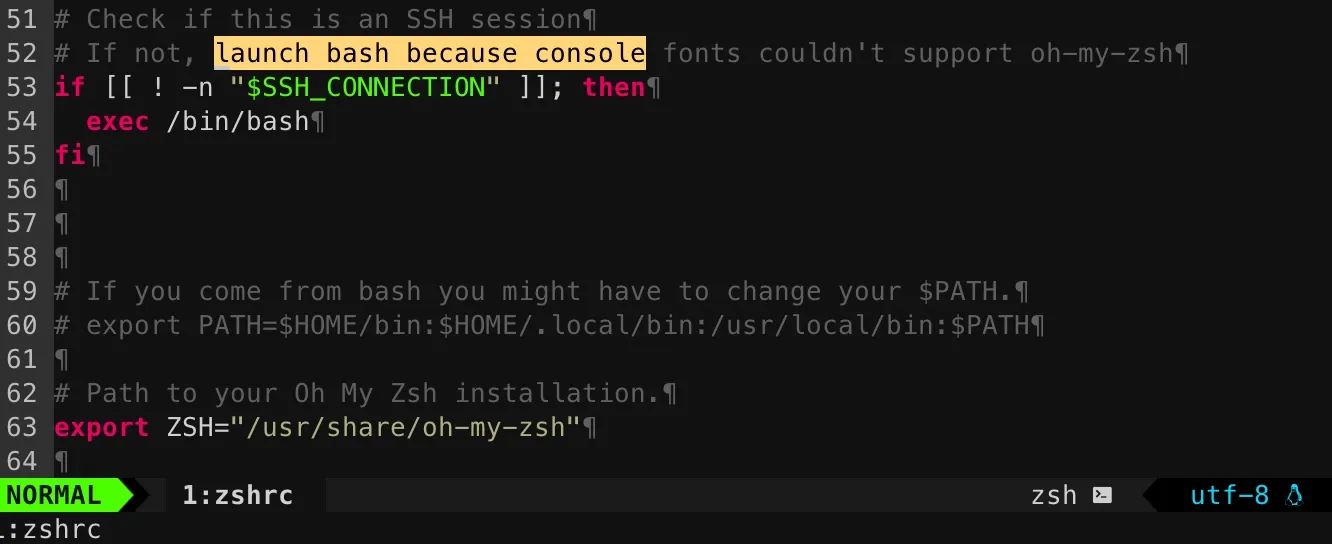
At the end of /etc/zshrc, add the following to handle SSH sessions:
# Check if this is an SSH session
# If not, launch bash because console fonts couldn't support oh-my-zsh
if [[ ! -n "$SSH_CONNECTION" ]]; then
exec /bin/bash
fi
Kubernetes tutorial part 1: launch bash if not ssh
You might notice above screenshot has a very nice status bar in Vim, let me know in comments if you want to know how I customized my Vim ^^ (This guide is best viewed on GeekCoding101—where it was originally published. 🚀) Append the .zshrc configuration into /etc/zshrc:
I know this is our first VM, but just in case you want to configure on your existing VM, for users created before setting up Oh-My-Zsh and Powerlevel10k, update their shell to Zsh (replace the ${targetuser} with your real username):
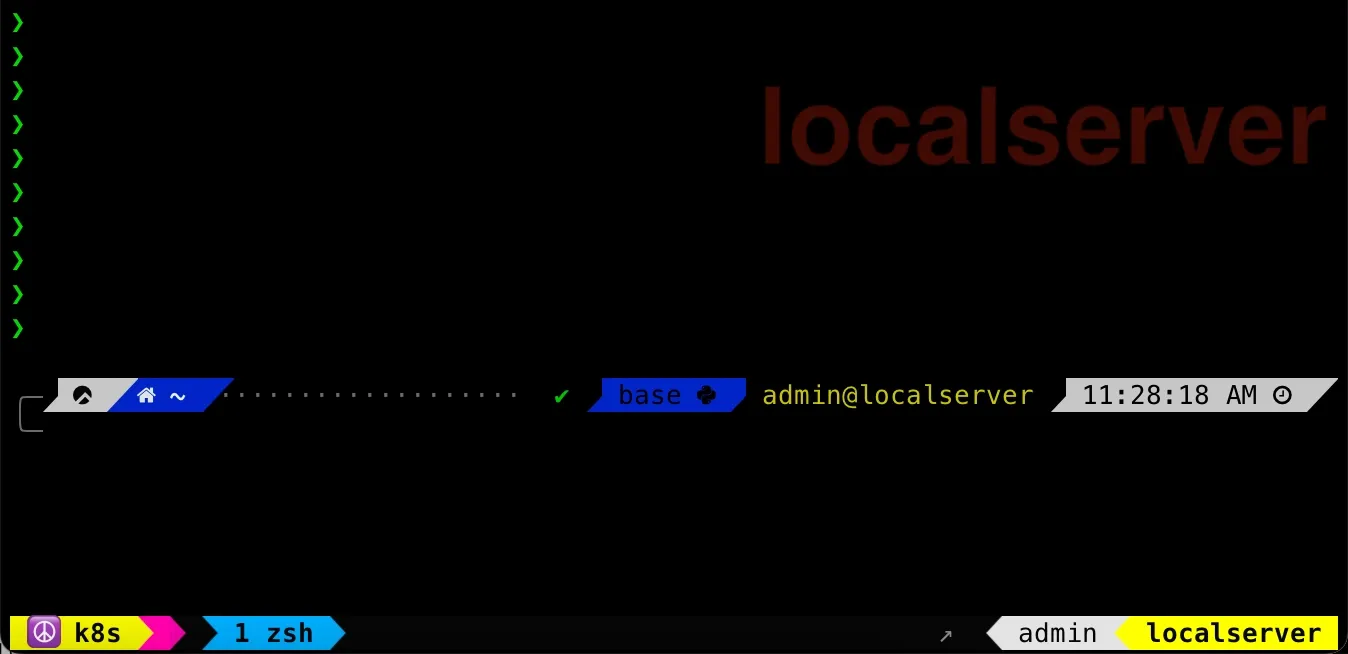
Ever had SSH sessions drop in the middle of a deployment? Or needed to juggle multiple terminals like a hacker in a sci-fi movie? tmux solves it all. With persistent sessions, split panes, and the ability to detach and reattach at will, I can effortlessly manage multiple Kubernetes nodes, tail logs, and run long processes without worrying about losing my progress. It’s basically my command-line command center, a friend of Kubernetes cluster administrator, and once you get hooked, there’s no going back. 🚀 This is another must for any development environment! Let me show you the tricks in this kubernetes tutorial!
I haven’t thought about what exact use case I need Python in this Kubernetes environment, but I want to have Python management toolkit ready on the base image so that it can become handy in future. Let’s cover this in thisKubernetes tutorial as well!
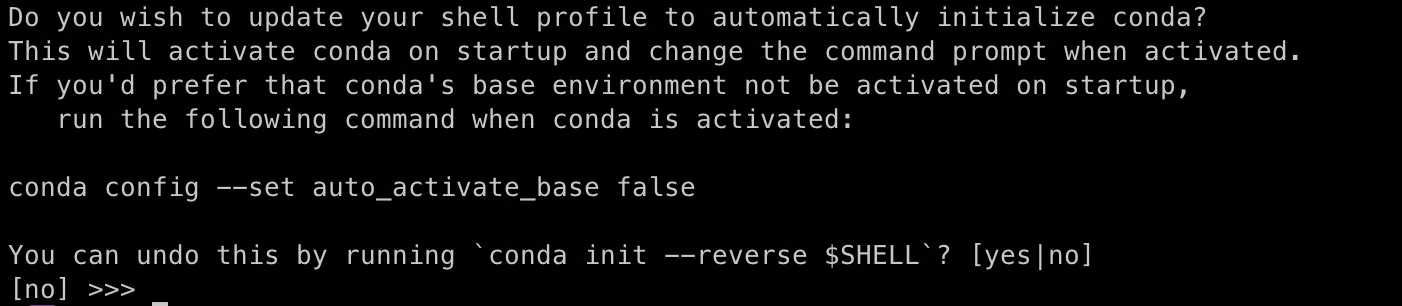
In my development environment, e.g. this Kubernetes cluster environment, I prefer Miniforge over Conda to manage Python, because — why deal with the bloated, corporate-flavored Anaconda distribution when you can have a lightweight, community-driven alternative that just works? 🚀 Miniforge gives you the same Conda package management power, but without the unnecessary packages, keeping it fast and minimal.
if [ -f "/opt/miniforge3/etc/profile.d/conda.sh" ]; then
. "/opt/miniforge3/etc/profile.d/conda.sh"
else
export PATH="/opt/miniforge3/bin:$PATH"
fi
fi
unset __conda_setup
if [ -f "/opt/miniforge3/etc/profile.d/mamba.sh" ]; then
. "/opt/miniforge3/etc/profile.d/mamba.sh"
fi
# <<< conda initialize <<<
You can see it set PATH in above, but just to be safe, in order to find programs under /opt/miniforge3/bin, I also manually updated my /etc/zshenv as below:
Think about it—cloning the base image is easy, but manually setting the hostname, network, and other configs for every VM? No thanks! That’s way too much repetitive work. 😵💫 I can’t tolerate such cumbersome in my kubernetes tutorial!
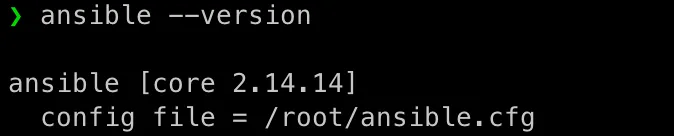
So, being the efficiency-loving geek that I am, I wrote a script at: 📌/opt/share_tools/bin/configure_vm.yml
With this, after cloning this base image for our Kubertenets cluster setup, I can just feed in an input file, run the script, and boom—it automatically configures each VM with the right settings. Less typing, fewer mistakes, and more time for the fun stuff. Let’s put this script to work! 🚀
This one must be the longest script in current Kubernetes tutorial post!
It’s actually simple. By the way, I will always show the complete code in my kubernetes tutorial, no worry missing any code. If you spot any, comment it immediately to let me know!
It configures the VM by setting up SSH keys, network settings, hostname, and environment variables. It reads configuration details from a JSON input file (input.json by default) and applies the following steps:
1. SSH Key Management
Ensures that both Ansible SSH keys (Remember I generated a different key pair for ansible purpose) and regular SSH keys are properly configured:
Removes existing keys if they are present, that’s the ones came from base image.
Generates new Ed25519 SSH key pairs for Ansible automation and regular SSH access.
2. Network & Hostname Configuration
Configures the machine’s IP address, gateway, and DNS using nmcli.
Brings up the modified network connection.
Sets the machine’s hostname using hostnamectl.
Updates /etc/hosts:
Removes any references to baseimage.
Adds a new entry for the machine’s IP and domain.
3. Environment Variable Setup
Ensures that the Ansible configuration path is set in /etc/zshenv.
[warningbox title=“Warning”]
Remember the Newwork Interface Name? You need to update ens160 in above script to your network interface name!
My bad! I should have parameterize it for the script!
[/warningbox]
This script is designed for our initial VM provisioning, ensuring SSH access, correct network configuration, and proper hostname resolution. It really makes our Kubernetes cluster setup easier!
Spent several days crafting this Part 1 post for my kubernetes tutorial — because if I’m doing this, I’m doing it right. My mission? To deliver the best damn Kubernetes cluster setup tutorial on the internet! 🚀
Up next, in mykubernetes tutorial Part 2, I’ll walk you through setting up a localserver to handle DNS and NTP services within our Kubernetes cluster environment, laying the foundation for a fully functional Kubernetes cluster. With some luck (and zero typos in config files), we’ll have our nodes talking to each other in no time. Stay tuned! 😎
Thanks for reading my blog post! Feel free to check out my other posts or contact me via the social links in the footer.
Transformers are changing the AI landscape, and it all began with the groundbreaking paper “Attention is All You Need.” Today, I explore the Introduction and Background sections of the paper,…
Hey there! Ready to take this Kubernetes setup to the next level? 🚀 In Part 1, we got our base VM image up and running—nice work! Now, in Part 2, I am going to clone that image to set up a local…