GeekCoding101

tmux is a terminal multiplexer: it lets you run many windows and panes inside one terminal and detach and reattach to sessions without losing what’s running. Every shortcut starts with the prefix key, Ctrl-b by default (written Pre below). For example, Pre % splits a pane left/right, Pre c opens a new window and Pre d detaches.
Hi there! Today I’d like to share my tmux notes.
tmux is my favorite terminal multiplexer. Several years ago I didn’t pay much attention to people using it, because I thought customizing it would eat too much of my time. Then one day I had some free time and tested the water. Now I can’t imagine my coding environment without it.
It’s a bit like Vim: the learning curve is steep, but once you’re comfortable with it, you get hooked. Let’s dive in.
Quick reference
| What you want | Shortcut / command |
|---|---|
| Split left / right | Pre % |
| Split top / bottom | Pre " |
| Move between panes | Pre <arrow key> |
| Zoom a pane (toggle) | Pre z |
| New window | Pre c |
| Detach from session | Pre d |
| List sessions | tmux ls |
| Attach to a session | tmux attach -t <name> |
| Enter copy mode / scroll | Pre [ |
What is tmux?
tmux is a so-called terminal multiplexer. Simply put, it acts as a window manager inside your terminal. You can create multiple windows and panes within a single terminal window, and keep sessions alive after you disconnect.
Pane shortcuts
| Shortcut | What it does |
|---|---|
Pre % | Split the pane left and right |
Pre " | Split the pane top and bottom |
Pre <arrow key> | Move to the pane in that direction |
Pre z | Make the current pane full screen, and back again |
Pre C-<arrow key> | Resize the pane in that direction (small steps) |
Pre ⌥-<arrow key> | Resize the pane in that direction (bigger steps) |
Pre :swap-pane -s <sid> -t <tid> | Swap pane sid with pane tid |
Pre x | Close the current pane (asks for confirmation) |
C-d | Exit the shell, which closes the pane |
Window shortcuts
| Shortcut | What it does |
|---|---|
Pre c | Create a new window |
Pre , | Rename the current window |
Pre w | List all windows and pick one |
Pre & | Close the current window (asks for confirmation) |
Session shortcuts
| Shortcut | What it does |
|---|---|
Pre :new -s <name> | Create a new session |
Pre C-c | Create a new session (binding from the gpakosz config, see below) |
Pre $ | Rename the current session |
Pre s, then x on a session | Delete the selected session |
Pre d | Detach from the current session |
Session commands from the shell
tmux ls # same as: tmux list-sessionstmux new -s <session name> # create a named sessiontmux attach -t 0 # attach to session 0tmux attach -t <session name> # attach by nametmux rename-session -t 0 <new name> # rename session 0tmux rename-session -t <old name> <new name>tmux kill-session -t <session name> # kill one sessiontmux kill-server # kill the server, i.e. all sessionsConfiguration
- Config folder:
~/.tmux - Config file:
~/.tmux.conf - Show all global options:
tmux show-options -g - Reload config inside a session:
Pre :source-file ~/.tmux.conf - Reload config outside a session:
tmux source-file ~/.tmux.conf
Searching in copy mode
Press Pre [ to enter copy mode.
If you use vi key bindings, enable them with Pre :set-window-option -g mode-keys vi. Then:
/and type the text, thenEnterto search forward?to search backwardnto jump to the next match,N(Shift-n) to jump the other wayqto exit copy mode
Plugins
I haven’t explored plugins much, but these are the ones I’ve used, and they’re worth a try:
- tmux-plugins/tpm: the tmux plugin manager
- tmux-plugins/tmux-sensible: a set of sensible default options
- tmux-plugins/tmux-resurrect: saves and restores sessions
- Save an entire tmux session:
Pre Ctrl-s - Restore an entire tmux session:
Pre Ctrl-r
- Save an entire tmux session:
Using a ready-made config from GitHub
I use https://github.com/gpakosz/.tmux.git. It’s well customized, and my .tmux.conf and .tmux.conf.local are based on it. Put your own changes in .tmux.conf.local and leave .tmux.conf alone.
Integrating tmux with iTerm2
I use iTerm2 on my Mac, so I want every new terminal to land in tmux.
In your iTerm2 profile, under General → Command, set:
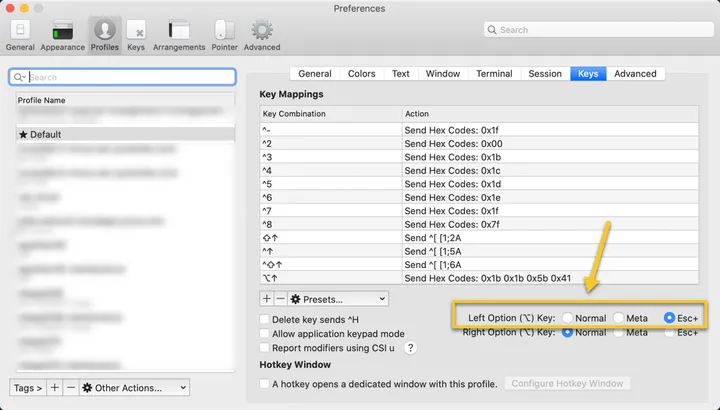
tmux attach -t base || tmux new -s baseIn tmux, Pre w lists all windows, and each entry has a shortcut. After 0–9, the shortcuts start with M-. M means the Meta key, and you need to set it up in iTerm2 for those shortcuts to work. Here’s my setting:
My customizations
Move windows left and right
Add this to ~/.tmux.conf.local. C means Control, S means Shift, and Left/Right are the arrow keys:
bind-key -n C-S-Left swap-window -t -1\; select-window -t -1bind-key -n C-S-Right swap-window -t +1\; select-window -t +1On tmux 3.0 or newer, the window you move may already stay selected. If your window jumps two places, use this simpler form instead:
bind-key -n C-S-Left swap-window -d -t -1bind-key -n C-S-Right swap-window -d -t +1Navigate between panes (not windows)
Pre + → / ← / ↑ / ↓
Turn on mouse mode
Find the mouse setting in ~/.tmux.conf.local and uncomment it:
# start with mouse mode enabledset -g mouse onAttach-or-create script for iTerm2
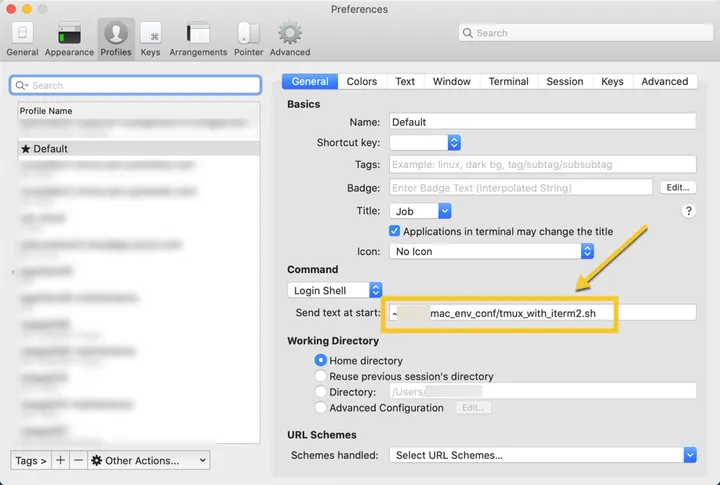
You can run this script when iTerm2 starts. It attaches to my kongfu session, or creates it, but skips attaching if the session is already attached in another iTerm2 tab.
Why bother? Without it, every new iTerm2 tab shows the exact same tmux session, and then what’s the point of opening a new tab?
#!/bin/zshtmux ls | grep kongfu | grep -q attachedif [[ $? != 0 ]]; then tmux attach -t kongfu || tmux new-session -s kongfuelse echo "********************************************************************************" echo "* Ignore attaching tmux kongfu session as it has been attached already. *" echo "********************************************************************************"fiReplace kongfu with your own session name.
Fixing the “dots” resolution problem across monitors
Say you’re connected to a remote server over SSH with Terminal.app. You started tmux on a smaller monitor, and now you tmux attach from a bigger one. tmux fills the extra space with dots, because the session still fits the smaller client’s window.
Fix: press Pre D (Shift-d), then choose which client to detach from the session. The remaining client gets the full size.
FAQ
What is the default tmux prefix key?
Ctrl-b. Press it, release, then press the shortcut key, for example Ctrl-b then c for a new window.
How do I reload my tmux config without restarting?
Inside tmux, run Pre :source-file ~/.tmux.conf. From a shell, run tmux source-file ~/.tmux.conf.
How do I kill all tmux sessions at once?
Run tmux kill-server. To kill just one, use tmux kill-session -t <name>.
How do I search the scrollback in tmux?
Enter copy mode with Pre [. With vi keys enabled, press / to search forward or ? to search backward, then n / N to move between matches.
Why do I see dots around my tmux window?
Another, smaller client is attached to the same session. Press Pre D and detach that client.
That’s all for today. Hope you find it useful!