GeekCoding101
Funplay MCP is a family of MIT-licensed MCP servers from FunplayAI that let an AI client such as Claude Code inspect and control a game editor; the Godot version is an addon that runs a local MCP server inside the Godot editor. To use it, copy the addon into your project, enable it under Project Settings, then register the stdio bridge with claude mcp add.
This guide uses the Godot one (you will also see it searched as “funplay godot mcp” or “godot mcp server”) because Godot is free and open source, so anyone can follow along. Funplay MCP is a third-party open-source project, not affiliated with Anthropic or Godot. Facts below come from the project’s official README, checked November 2026. If you are new to the protocol, start with What Is an MCP Server?.
What Funplay MCP is
The Godot addon is written in GDScript and supports Godot 4.2+ and Godot .NET projects. While it runs, it exposes the editor over MCP so a client can ask about the open scene, read project context and call tools.
There are sibling projects for other editors: Unity, Unreal and Cocos. This article covers only the Godot one.
If you want to see how MCP compares with calling a plain HTTP API, read MCP vs API. For another desktop-app walkthrough, see Ghidra MCP: AI Reverse Engineering.
What you need
- Godot 4.2 or newer
- Git and Node.js (the bridge is an npm package)
- Claude Code installed
Check your Godot version first:
godot --version
Install the Funplay MCP addon for Godot
The README lists three ways to get the addon: copy addons/funplay_mcp into res://addons/, install it from the Godot Asset Store page, or download the zip from the GitHub Releases page. Here we use the clone-and-copy route with a tiny throwaway project.
mkdir funplay-democd funplay-demomkdir -p addonsgit clone https://github.com/FunplayAI/funplay-godot-mcp.git ../funplay-godot-mcpcp -r ../funplay-godot-mcp/addons/funplay_mcp addons/Next, make the folder a Godot project: open Godot, choose Import, and select the funplay-demo folder (or create a new empty project there with a project.godot file). The listing below confirms the addon is in place:

Enable the plugin and start the server
In the editor, go to Project → Project Settings → Plugins and enable Funplay MCP for Godot. A Funplay MCP dock appears in the editor.
By default the server listens on http://127.0.0.1:8765/. If that port is busy, it picks another free port and saves it in user://funplay_mcp_settings.cfg. Local POST requests need a per-project auth token, which is stored in that same file. Use the dock to start the server and to read the URL and token it is actually using.
The dock also offers one-click client configuration. If you prefer to see exactly what is configured, the manual route below shows every part.
Connect Claude Code
Claude Code talks to the addon through the stdio bridge, an npm package named funplay-godot-mcp (version 0.10.1 at the time of writing). It is configured with two environment variables: FUNPLAY_GODOT_MCP_URL and FUNPLAY_GODOT_MCP_TOKEN.
Run this from your project folder, replacing <your-token> with the token from the dock (or from the auth_token line of funplay_mcp_settings.cfg):
claude mcp add funplay \ --env FUNPLAY_GODOT_MCP_URL=http://127.0.0.1:8765/ \ --env FUNPLAY_GODOT_MCP_TOKEN=<your-token> \ -- npx -y funplay-godot-mcpIf the dock shows a different port, use that URL instead. Then check the connection:
claude mcp list
The output shows the npx -y funplay-godot-mcp command and no token, because the token lives in the server’s environment, not in the listing. I ran this with the Godot editor open and the plugin enabled, so the bridge could reach the addon.
If it is not connected, confirm the Godot editor is open, the plugin is enabled, the server is started and the URL and token match the dock.
Run a first safe request
Ask for something read-only. The README suggests calling get_scene_info or reading the resource godot://project/context. You can type the prompt in an interactive claude session, or run it once in non-interactive mode, which is what I did, pre-approving only that one tool:
claude -p "Call the funplay get_scene_info tool and tell me what scene is open. Answer in English, in two short lines." \ --allowedTools mcp__funplay__get_scene_info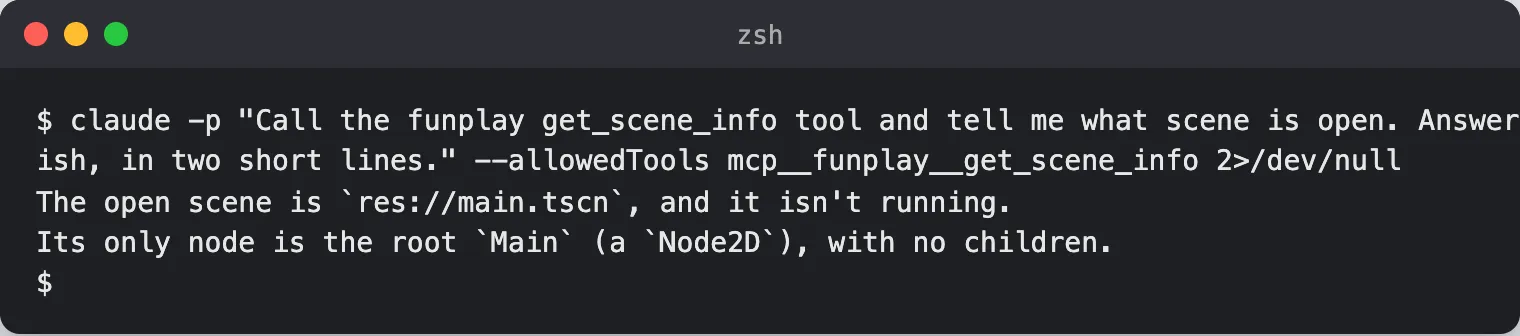
My demo project holds a single empty Node2D scene, so that is exactly what Claude reports back. (The screenshot command also adds 2>/dev/null to hide an unrelated sign-in notice from Claude Code.)
Stay with read-only requests until you understand what the server can do.
The auth token and the execute_code risk
The token stops arbitrary local software from posting to the server without it. Treat it like a password: don’t commit user://funplay_mcp_settings.cfg or paste the token into screenshots or chats. It is a simple local shared secret, not a full authorization system; for how real remote MCP auth works, see MCP Authorization and OAuth 2.1.
The bigger point is what an authenticated client can do. According to the README, authenticated clients can run high-impact tools including execute_code, which runs code inside your editor with your user’s permissions. The README’s advice is to keep the server on only while working with trusted local clients and to leave safety checks on.
Practically, that means:
- Stop the server when you are not using it.
- Use a throwaway or version-controlled project while experimenting.
- Keep Claude Code’s permission prompts on. See Claude Code’s —dangerously-skip-permissions for why skipping them is a bad idea with a tool like this.
Funplay MCP vs driving Godot with plain scripts
You can already automate Godot with GDScript tool scripts or the command line. That works well for repeatable tasks such as exports and tests. The difference with an MCP server is that the AI can ask questions of the live, open editor (the current scene, project context) and act on the answer in the same conversation.
The trade-off is trust. A script does exactly what you wrote; an MCP-connected client decides what to call, so the safety settings above matter more.
FAQ
What is Funplay MCP?
It is a family of MIT-licensed MCP servers by FunplayAI for game editors, with versions for Unity, Godot, Unreal and Cocos. The Godot version is an addon that exposes the editor to MCP clients.
Which Godot versions does it support?
The README says Godot 4.2+ and Godot .NET projects.
Is Funplay MCP official from Godot or Anthropic?
No. It is a third-party open-source project, not affiliated with either.
Is it safe to leave the server running?
Not recommended. Authenticated clients can use high-impact tools such as execute_code, so run it only while working with trusted local clients and keep safety checks on.