# Claude --dangerously-skip-permissions: What It Does and When to Use It
Table of Contents
So, I hit the wall everyone hits with Claude Code. I asked it to refactor a module, went to make coffee, and came back to… a prompt. “Allow npm test?” Yes. Two minutes later: “Allow git diff?” Yes. Then mkdir. Then ls.
The flag that makes all of this go away is right there in claude --help, and the name tells you exactly how the Claude Code team feels about it: --dangerously-skip-permissions.
I now run quite a few Claude Code jobs unattended, so I’ve spent real time on the question this post answers: what does the flag actually do, when is it fine to use, and what should you use instead most of the time?
The screenshots and outputs below come from macOS 26.6 on an Apple Silicon Mac with Claude Code 2.1.302, run in an empty demo folder. Config snippets I took from the docs without running them are marked. Claude Code changes fast, so check claude --help on your own version.
TL;DR
claude --dangerously-skip-permissionsis the same asclaude --permission-mode bypassPermissions. Claude stops asking before it edits files, runs shell commands or fetches URLs.- It refuses to start as root / sudo on Linux and macOS (outside a recognized sandbox).
- The official advice is to use it only in isolated environments: a container or VM with no internet access, or with a strict egress allowlist.
- For day-to-day work you almost never need it. Allow rules, acceptEdits, the sandbox and auto mode remove most prompts with far less risk.
What the flag actually does
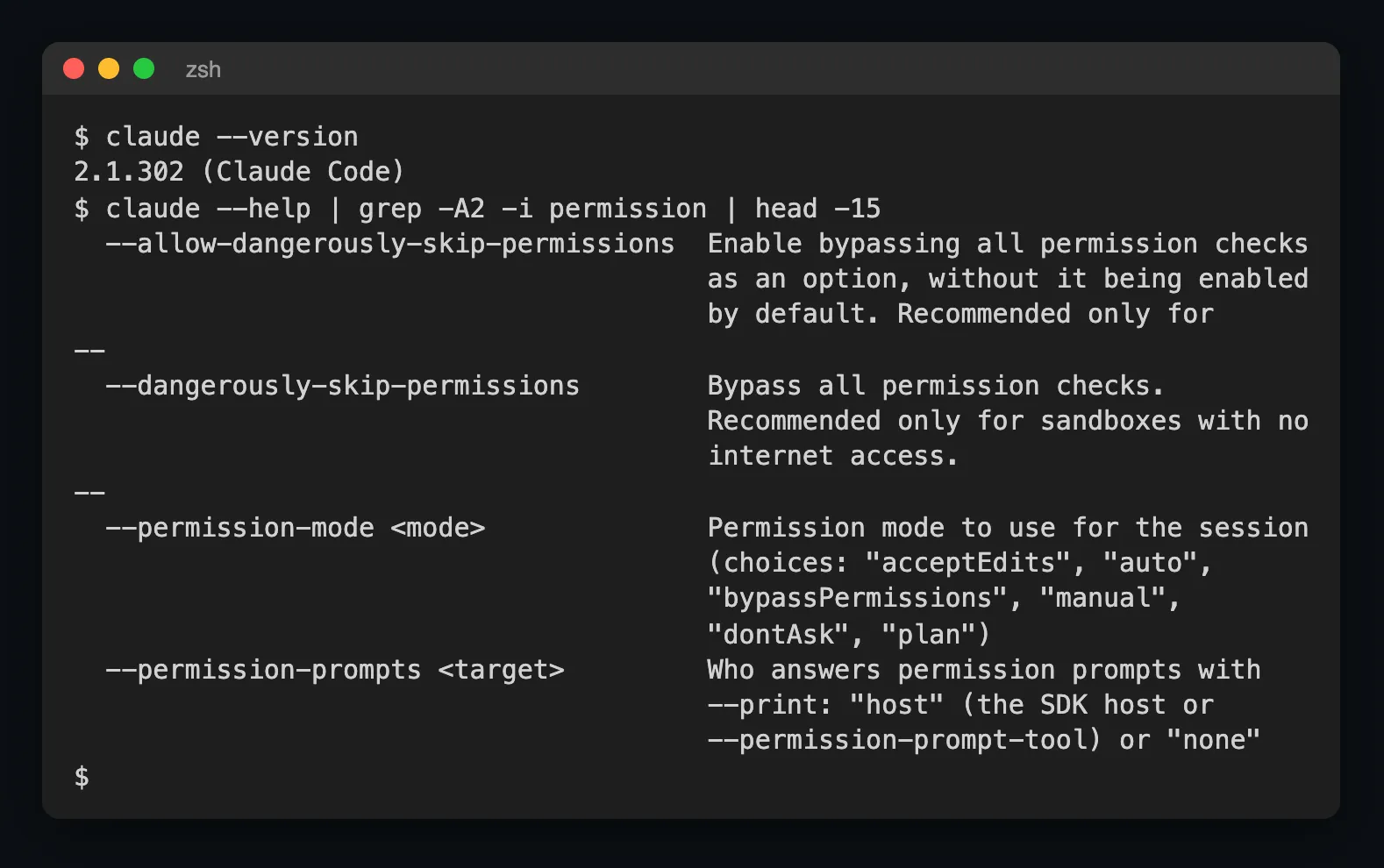
Here is the relevant part of the help text on my machine:
claude --help | grep -A2 -i permissionTwo flags matter:
| Flag | What it does |
|---|---|
--dangerously-skip-permissions | Starts the session in bypassPermissions mode. No permission prompts. |
--allow-dangerously-skip-permissions | Adds bypass mode to the Shift+Tab mode cycle, but does not turn it on. You switch into it only when you want it. |
Per the permission modes docs, --dangerously-skip-permissions is equivalent to --permission-mode bypassPermissions. One gotcha: you can’t switch into bypass mode in the middle of a session that wasn’t started with it enabled.
What “bypass” really means:
- File edits, shell commands, web fetches and MCP tool calls all run without asking.
- Writes to protected paths such as
.git,.vscode,.idea,.huskyand Claude’s own config are allowed too. In the other modes those prompt, go to the auto-mode classifier, or are denied. This is the scariest part, in my opinion. A confused agent rewriting your git hooks or its own settings is a much bigger problem than a bad edit insrc/. - What still stops it: deny rules in your settings, explicit ask rules (they still prompt), managed (admin) policy, and a short list of actions no mode auto-approves, such as
rm -rfaimed at a critical path like your home directory or the filesystem root.
Why it refuses to run as root
Start it as root and Claude Code exits with this error (wording from the permission modes docs; I don’t run my Mac as root, so no screenshot here):
--dangerously-skip-permissions cannot be used with root/sudo privileges for security reasonsThat’s intentional. “Never ask me” plus “can do anything to this machine” is the worst combination. Inside a dev container you’re expected to run as a non-root user (remoteUser in devcontainer.json). The check is skipped only inside a sandbox Claude Code recognizes.
Pro tip: If you see this error in Docker, don’t reach for
sudotricks. Add a normal user to the image and run Claude Code as that user. That’s what the official dev container does.
The six permission modes
--permission-mode (and permissions.defaultMode in settings) accepts these values:
| Mode | What Claude can do without asking | When I use it |
|---|---|---|
manual (config value default) | Reads. Everything else prompts | New repo, or anything I care about |
acceptEdits | Reads, file edits and common filesystem commands (mkdir, mv, cp, touch) | Normal coding sessions |
plan | Reads and explores; when auto mode is available, the classifier can approve some commands. No source edits | ”Tell me what you’d change first” |
auto | Runs without routine prompts. A separate classifier model reviews actions and blocks anything that goes beyond what you asked for | Long tasks I don’t want to babysit |
dontAsk | File reads in the working directory and pre-approved tools. Anything that would prompt is denied | Scripts and CI |
bypassPermissions | Everything, including protected paths | Throwaway containers and VMs only |
Two things changed recently that older tutorials miss. The mode that asks about everything is now called Manual in the CLI (--permission-mode manual; the config value is still default). And since v2.1.283, auto is the built-in starting mode for interactive terminal sessions when nothing else picks one.
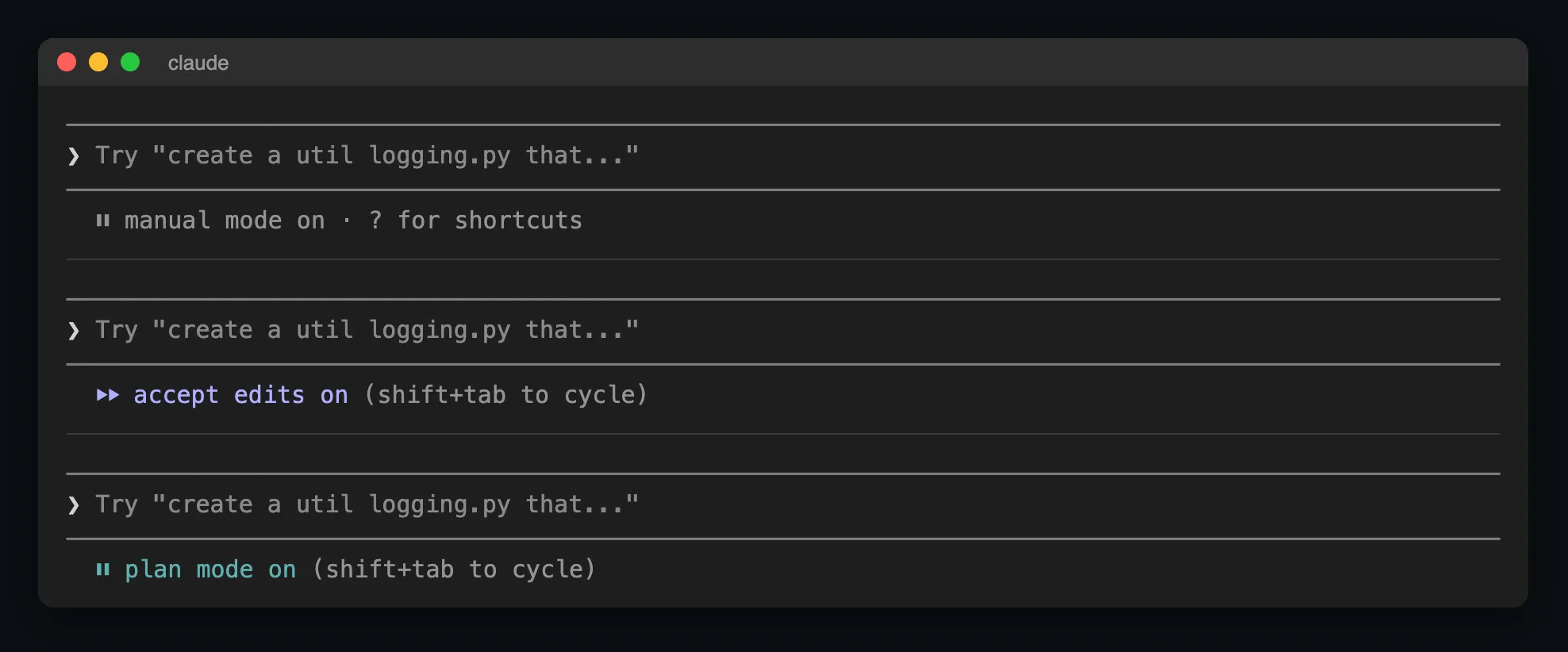
In an interactive session, Shift+Tab cycles the modes. From auto, the first press goes to manual, then manual → acceptEdits → plan. Bypass only joins the cycle if the session was started with it enabled. Here is the status line in my demo session, started with claude --permission-mode manual, after zero, one and two presses:
One thing that tripped me up: putting "defaultMode": "bypassPermissions" (or "auto") in a project’s .claude/settings.json or .claude/settings.local.json does nothing. Those two values only take effect from your user settings (~/.claude/settings.json), managed settings, or the command-line flag. It makes sense: otherwise a repo you just cloned could switch your agent into bypass mode.
Option 1: just allow what you trust
Most of my prompt fatigue came from the same ten commands. Allow rules fix that without giving up control. Put them in .claude/settings.json (shared with the team) or .claude/settings.local.json (just you):
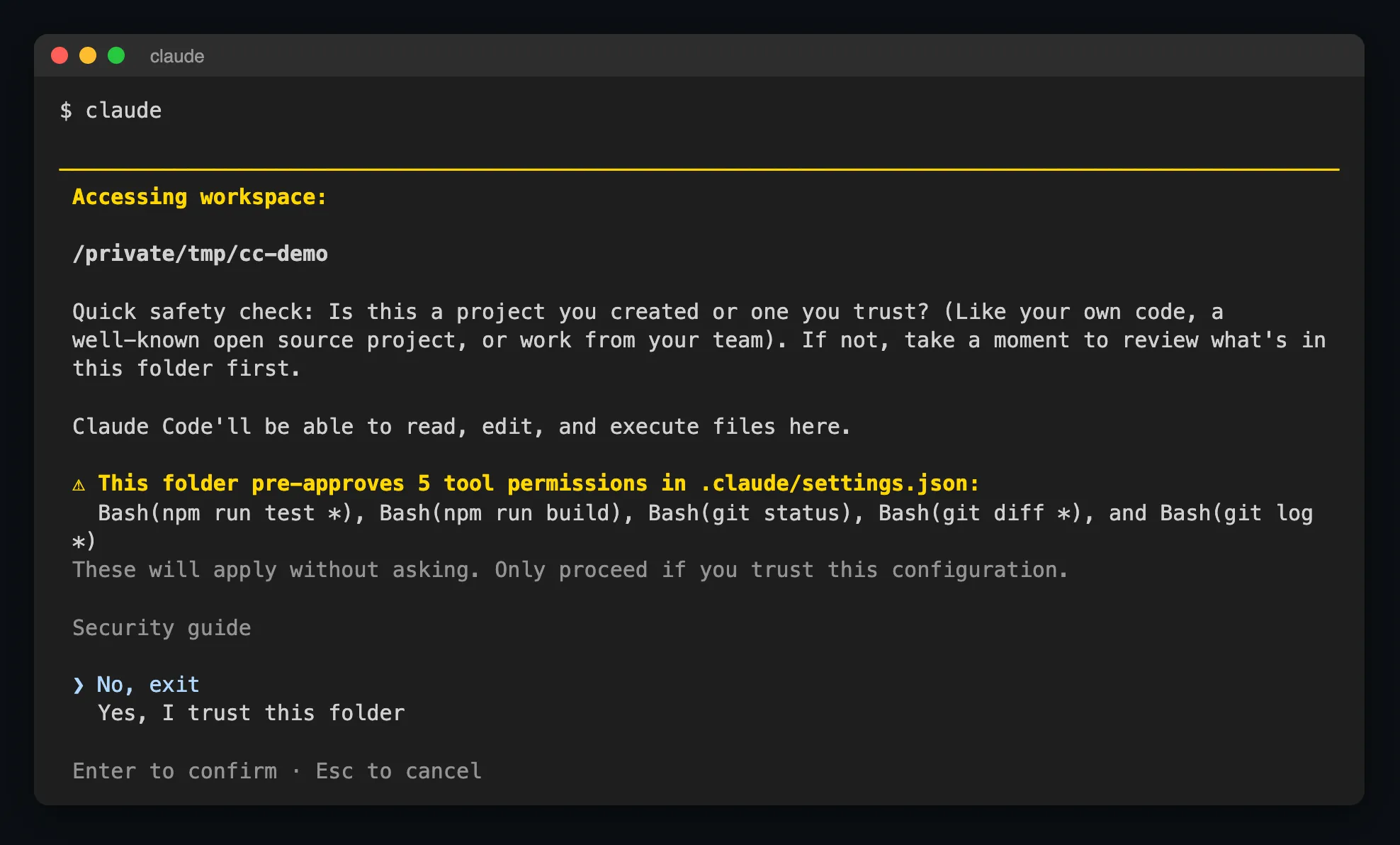
{ "permissions": { "allow": [ "Bash(npm run test *)", "Bash(npm run build)", "Bash(git status)", "Bash(git diff *)", "Bash(git log *)" ], "ask": [ "Bash(git push *)" ], "deny": [ "Read(./.env)", "Read(./secrets/**)", "Bash(curl *)" ] }}I dropped exactly this file into my demo folder. The first time I opened Claude Code there, the trust prompt called out every rule the folder pre-approves, which is worth reading carefully on any repo you didn’t write:
How the rules work (permissions docs):
- Order is deny → ask → allow. The first match wins, so an allow rule can never punch a hole in a deny rule.
Bash(git diff *)is a prefix match that also matches baregit diff. The space before*matters: it won’t matchgit diff-index.WebFetch(domain:docs.python.org)allows one domain.mcp__github__*allows every tool from one MCP server.- When you pick “Yes, and don’t ask again” in a prompt for a command or a domain, Claude Code writes the rule into
.claude/settings.local.jsonfor you. - Type
/permissionsinside a session to see every active rule; select one to see which settings file it came from.
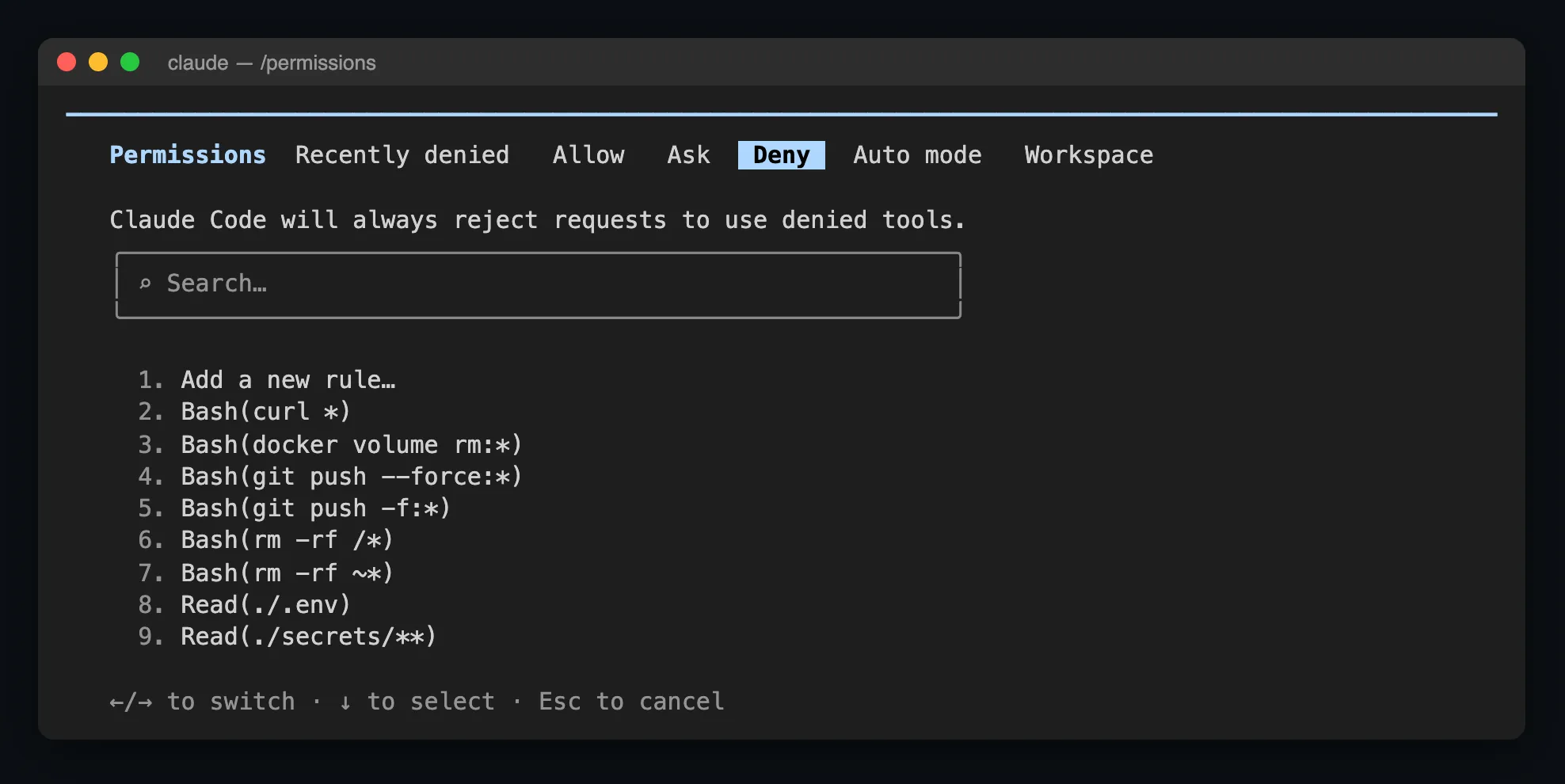
The Deny tab above mixes the three deny rules from the demo file with the ones from my own user settings. That’s how it works: rules from every settings file add up.
Deny rules are your seatbelt. They keep working even in bypass mode, so if you do end up using the dangerous flag, write the deny list first.
Option 2: let the sandbox do the saying no
Claude Code has a built-in sandbox for shell commands. It’s off by default; turn it on with /sandbox (or "sandbox": { "enabled": true } in settings). On macOS it uses Seatbelt; on Linux and WSL2 it uses bubblewrap.
- Commands can write only to the working directory, a temp directory and directories you added. Protected paths stay write-denied.
- Network traffic goes through a proxy that allows only the domains you list in
sandbox.network.allowedDomains(the list starts empty). - In the sandbox’s auto-allow mode, sandboxed commands run without a prompt, because the OS enforces the limits instead of you.
Two caveats from the sandboxing docs: it covers shell commands only (the built-in file and web tools follow your permission rules instead), and by default it can still read most of your disk, including credential files such as ~/.ssh and ~/.aws/credentials. Add filesystem.denyRead entries for those.
Option 3: auto mode
Auto mode is the middle ground I use most for long tasks. Claude runs without routine prompts, and a separate classifier model checks each risky action against what you actually asked for. It blocks things like touching infrastructure you never mentioned, or following instructions that came from a web page or file instead of from you.
Honest story: this week one of my unattended agents tried to call a local endpoint that would have resumed a paused background job on a shared service. Auto mode blocked it and wanted me to approve it myself. Slightly annoying in the moment, exactly what I want from a guard.
Auto mode is not a security boundary either. The docs say it plainly: it reduces prompts “but does not guarantee safety”. If the classifier blocks 3 actions in a row (or 20 in a session), auto mode pauses and normal prompts come back. It also needs a supported model, and an admin can turn it off.
When skipping permissions is actually fine
I use --dangerously-skip-permissions when all of these are true:
- It runs in a container or VM I can throw away, not on my laptop’s real home directory.
- No secrets are mounted. No
~/.ssh, no cloud credentials, no production.env. (The dev container docs warn that even a container can’t stop a malicious project from exfiltrating what’s inside it, including Claude Code’s own credentials in~/.claude.) - Network egress is locked down: no internet, or a firewall allowlist. The reference dev container ships an
init-firewall.shfor exactly this. - The work is in git, so the worst case is
git reset --hard.
The quickest way there is the official dev container feature. This is the minimal config from the dev container docs plus a non-root remoteUser (the base image ships a vscode user); I haven’t run it on this machine:
{ "image": "mcr.microsoft.com/devcontainers/base:ubuntu", "features": { "ghcr.io/anthropics/devcontainer-features/claude-code:1.0": {} }, "remoteUser": "vscode"}Then, inside the container:
claude --dangerously-skip-permissionsFor headless runs (CI, cron), I prefer being explicit instead of skipping everything:
# Only the tools this job needs; anything else is denied instead of promptingclaude -p "Run the tests and fix any failing test in src/" \ --permission-mode acceptEdits \ --allowedTools "Read,Edit,Bash(npm run test *)"I ran exactly this command against a tiny npm project with one broken sum() function and one failing test. It finished without a single prompt: it changed a - b to a + b and the test passed. It also rewrote my test script in package.json, because node --test src/ doesn’t work on Node 22. That’s a good reminder that acceptEdits lets it edit any file in the folder, not just the one you had in mind. Since v2.1.302, a claude -p run with no mode set starts in Manual, and anything that needs approval is denied.
If you’re an admin and want nobody on the team to use bypass mode, set "permissions": { "disableBypassPermissionsMode": "disable" } in managed settings.
FAQ
What does --dangerously-skip-permissions do in Claude Code?
It starts Claude Code in bypassPermissions mode, so Claude edits files, runs shell commands and calls tools without asking you first. Deny rules, explicit ask rules and admin policy still apply.
Is --dangerously-skip-permissions the same as bypassPermissions?
Yes. The flag is equivalent to claude --permission-mode bypassPermissions. --allow-dangerously-skip-permissions only makes the mode available in the Shift+Tab cycle without turning it on.
Why do I get “cannot be used with root/sudo privileges”?
Claude Code refuses bypass mode when it runs as root on Linux or macOS, unless it detects a sandbox. Run it as a normal user, for example remoteUser in a dev container.
Can I set bypass mode as the default?
Only in your user settings (~/.claude/settings.json), managed settings or the command line. A project’s .claude/settings.json or .claude/settings.local.json can’t turn on bypassPermissions or auto.
Is it safe to use --dangerously-skip-permissions?
Only in an isolated container or VM with no secrets mounted and limited network access. On your main machine, use allow rules, acceptEdits, the sandbox or auto mode instead.
How do I stop Claude Code asking for permission without the dangerous flag?
Add allow rules for commands you trust (Bash(npm run test *)), pick “Yes, and don’t ask again” in prompts, turn on /sandbox, or switch to acceptEdits or auto with Shift+Tab.
Takeaway
--dangerously-skip-permissions isn’t evil. It’s a tool for a specific place: a disposable box with nothing worth stealing. Everywhere else, spend ten minutes on an allow list and a deny list. You’ll get most of the “stop asking me” benefit, and you keep the one prompt that matters: the one before something irreversible.
If you’re building your own agents, my posts on what an AI agent is and how to build one and what an MCP server is go deeper into tool calling, which is exactly what these permissions guard.